
Migrate Zoho CRM records between orgs without duplicates
Copy Zoho CRM records between orgs with lookups re-pointed, and re-runs matched on the fields you choose.
The problem
Setup is only half of a release. A new pricing model needs its Price Books, a territory change needs its reference records, and testing in a sandbox needs accounts and contacts that look like the real thing. Sometimes the job is bigger: a client is consolidating two Zoho CRM orgs, or moving a business unit from one org into another.
Copying the rows once is not the hard part. The hard part is the second time. Run the same copy again next week and you get every record twice. Contacts arrive without their account because the account link pointed at a record in the other org. A record changed in the source since last time, and you can't tell which ones without opening both orgs side by side.
How it's done today
The usual route is an export from the source, a clean-up in a spreadsheet, and Zoho's Import wizard in the target. The wizard takes CSV, XLS/XLSX and VCF files. A CSV import is capped per run by edition, from 10,000 records on Standard to 50,000 on Ultimate, and XLS, XLSX and VCF files are capped at 5,000 records per batch. You need the Import permission on your profile. Lookups are matched by name or by record ID, and a missing or invalid value leaves the lookup empty.
For moving data from one Zoho CRM account to another, Zoho also offers Data Migration, which works from an exported Data.zip and needs an Administrator. Users must be migrated first, rows fail with parent-record-not-found errors when parent IDs don't match, and a migration can be undone from Import History.
Sandboxes don't help in the other direction. Zoho says records added, imported or populated in a sandbox cannot be deployed to production. A Partial Data sandbox can copy a chosen number of records per module from production when the sandbox is created or rebuilt.
Compare one module between two orgs
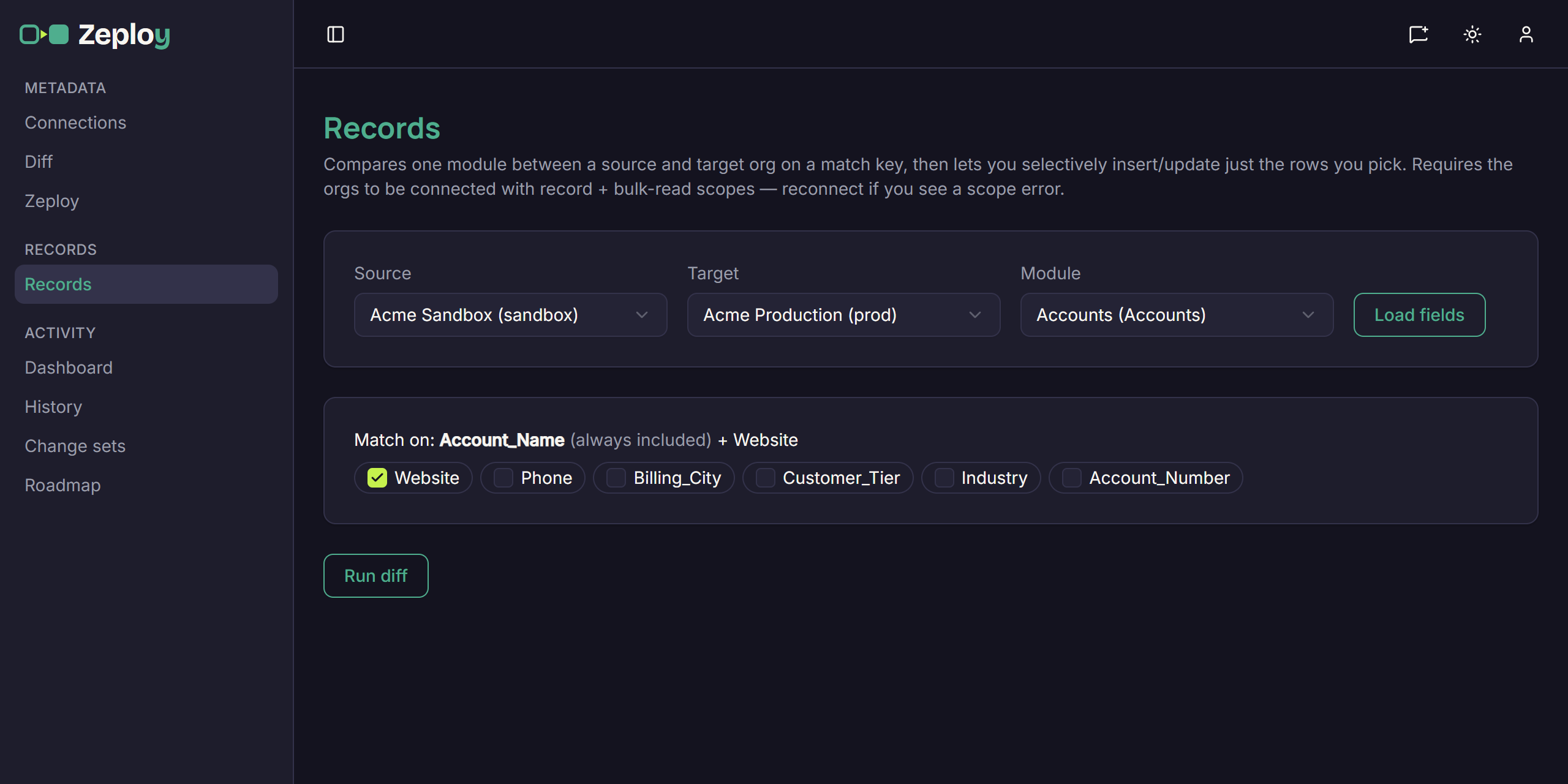
Zeploy treats records like configuration: compare first, then choose. Open Records from the sidebar, choose a Source and a Target, and pick a Module such as Accounts. Both connections must be in the same organization, so this works between a client's sandbox and production, or between two of that client's production orgs. It never moves records between two clients.
Choose Load fields and Zeploy shows a Match on line. The module's primary field, Account_Name for Accounts, is always part of the match. Tick other fields to make it stricter, for example Website, so two records only count as the same when both values agree. That set of fields is the match key, and it is what lets you run the same copy again safely.
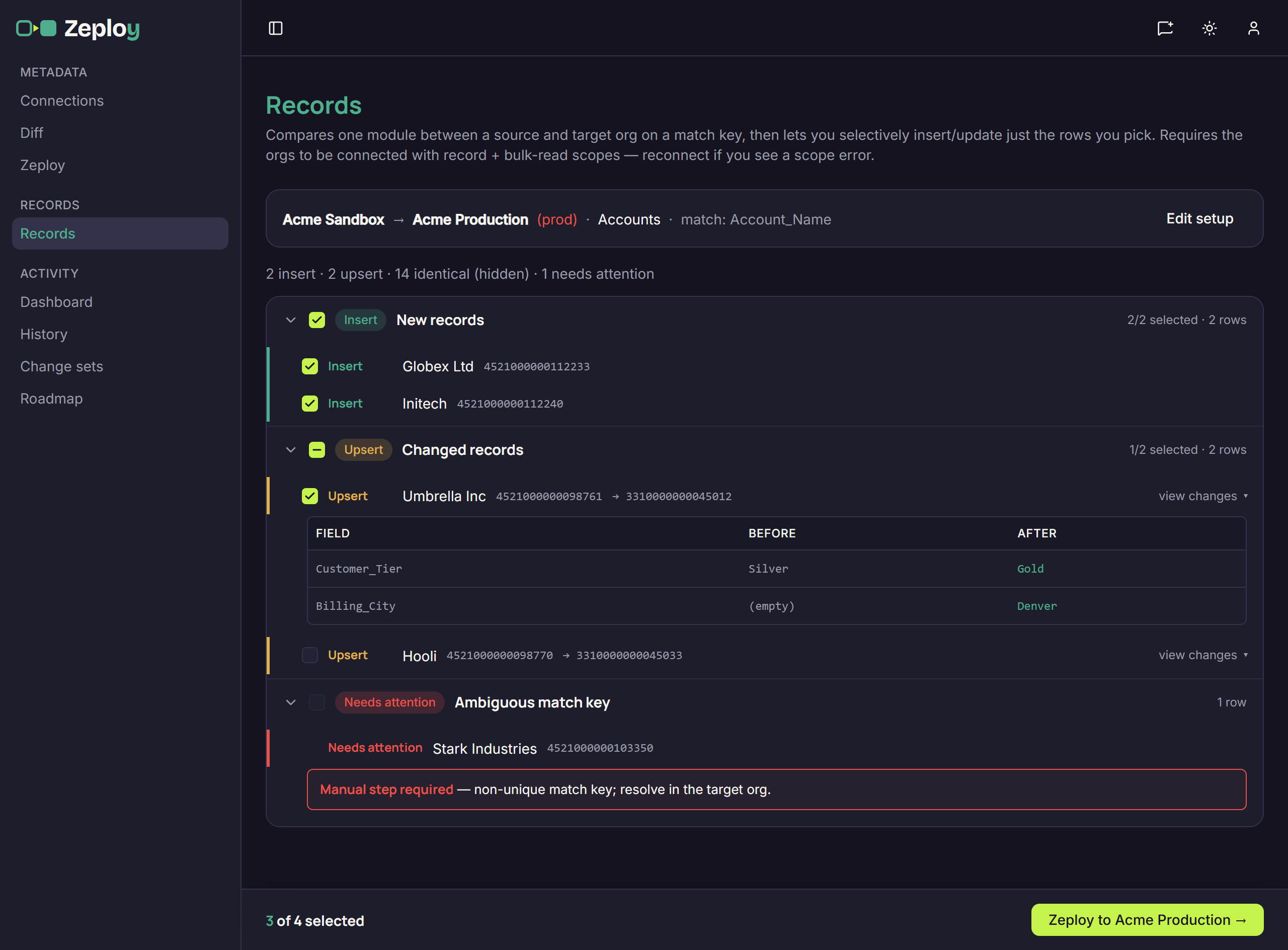
Choose Run diff. Zeploy reads both orgs in the background and sorts every source row into a group. Insert means the row isn't in the target and would be created. Upsert means it exists with different values and would be updated; view changes shows each field's before and after values. Needs attention means more than one record matches the key, so Zeploy can't tell which to update. Identical rows are counted and hidden.
Pick the rows and apply them
Tick the rows you want, one at a time or a whole group from its header, and choose Zeploy to your target in the bottom bar. The Review & approve page lists each row with its source id and action, Insert or Upsert, and you can untick any of them. When the target is production its name shows in red and you tick an acknowledgement before the Zeploy button turns on. A team member without permission to write to the target sees Send for Zeployment instead and sends the rows to an owner or admin to approve.
The Records Zeployment page updates as the run goes. It shows the status, the module, how many rows were applied out of the total and the number of unmapped lookups, then one line per row with its source id, target id, action and any error. A run ends as Succeeded, Failed or Partial, and runs are kept in History under Execution Runs with the kind records, for as long as your Data retention setting allows.
How lookups and re-runs work
A lookup in the source holds the source org's record ID, which means nothing in the target. Zeploy keeps a map of every row it has applied successfully to a target, source ID to target ID, for as long as that run's history is kept (see Data retention), and re-points lookups through that map. So order matters: move Accounts first, then Contacts, then Deals, and each module's lookups land on the records the earlier run created or updated.
A lookup whose related record Zeploy hasn't moved to that target is left out of what is written, rather than sent with an ID from the wrong org, and it is counted as an unmapped lookup on the run page. On a new record that leaves the lookup blank; fill it in by hand or move the parent module and run again.
Because rows are matched on the key, a second run finds the records the first one created and offers them as Identical or Upsert, not as new inserts. Empty source values are skipped, so an update doesn't blank out a value the target already has. The record owner and system fields such as created and modified time aren't copied.
What to watch for
Zeploy has no undo for records, so read the review page before you continue. It only inserts and updates; it never deletes a record in the target.
Records moves data, not setup. Fields and modules must already exist in the target, so deploy them first through the metadata Diff. Needs attention rows can't be selected: fix the duplicates in the target org and run the diff again. Adding more match fields makes matching stricter, and a row whose match values differ between orgs shows up as a new Insert.
Both connections need record and bulk-read access. If you see a scope error, use Reconnect on the connection. Writing to the target needs the owner or admin role, or a member with the Can Zeploy permission.
Questions
- If I run the same migration twice, will I get duplicates?
- No. Rows are matched on the primary field plus any match fields you tick, so records the first run created come back as Identical or Upsert. Only rows still missing from the target are offered as Insert.
- Do the two orgs have to be a sandbox and its production org?
- No. Records works between any two connections in the same organization, including two production orgs. Like the metadata Diff, it never pairs connections from different organizations.
- What happens to a lookup when the related record isn't in the target?
- Zeploy leaves that lookup out of the write and counts it as an unmapped lookup on the run page. Move the parent module first and the lookup is re-pointed on the next run.
- Can I move test records from a sandbox into production?
- Yes. Zoho's sandbox deploy doesn't carry records, but Records can use a sandbox as the Source and production as the Target, with the production acknowledgement on the review page.
- Will Zeploy create a field the records need?
- Not from Records. Fields and modules have to exist in the target first. Use the metadata Diff to deploy them, then compare the records.