
Approve Zoho CRM changes before they go out
Have members' changes approved by an owner or admin before they go out, with a record of every run.
The problem
Once more than one person changes a Zoho CRM org, someone needs to look before a change goes out. A junior consultant builds a new layout for a client. A team member adds a workflow rule that emails every account owner. Each is fine on its own, but nobody wants to find out from the sales team that production changed.
Two questions come up afterwards, too. Who agreed to this change? And what exactly was sent, by whom, and when? If the answers live in a chat thread and someone's memory, they are hard to find the week something breaks.
How it's done today
In Zoho CRM's sandbox, the Manage Sandbox permission decides who can deploy. Users with it can create, edit and rebuild sandboxes, add developers, deploy to production, and deactivate or delete sandboxes. Zoho's documentation doesn't describe an approval step before a deployment, so the permission is the gate: a user either can deploy or can't.
Zoho does keep a record. The Deployment Logs tab lists deployments from the last six months with the date, sandbox, items and user. Manage Sandbox users see the logs for all sandboxes; others see only their own.
So the review itself happens somewhere else: a message asking for a look, a screen share, a ticket. When changes are rebuilt by hand in production, there is no list of what was sent at all.
Who can Zeploy, and who asks
Zeploy has three roles: owner, admin and member. Owners and admins can always Zeploy. A member can only if the owner gives them the Can Zeploy permission, which covers writing to any org, sandbox or production, for both metadata Zeployments and records.
A member without Can Zeploy can still do most of the work. They can run diffs, compare records, run Validate and save change sets. Where the button would read Zeploy, they see Send for Zeployment, which turns their selection into a request for an owner or admin to decide.
Send a request
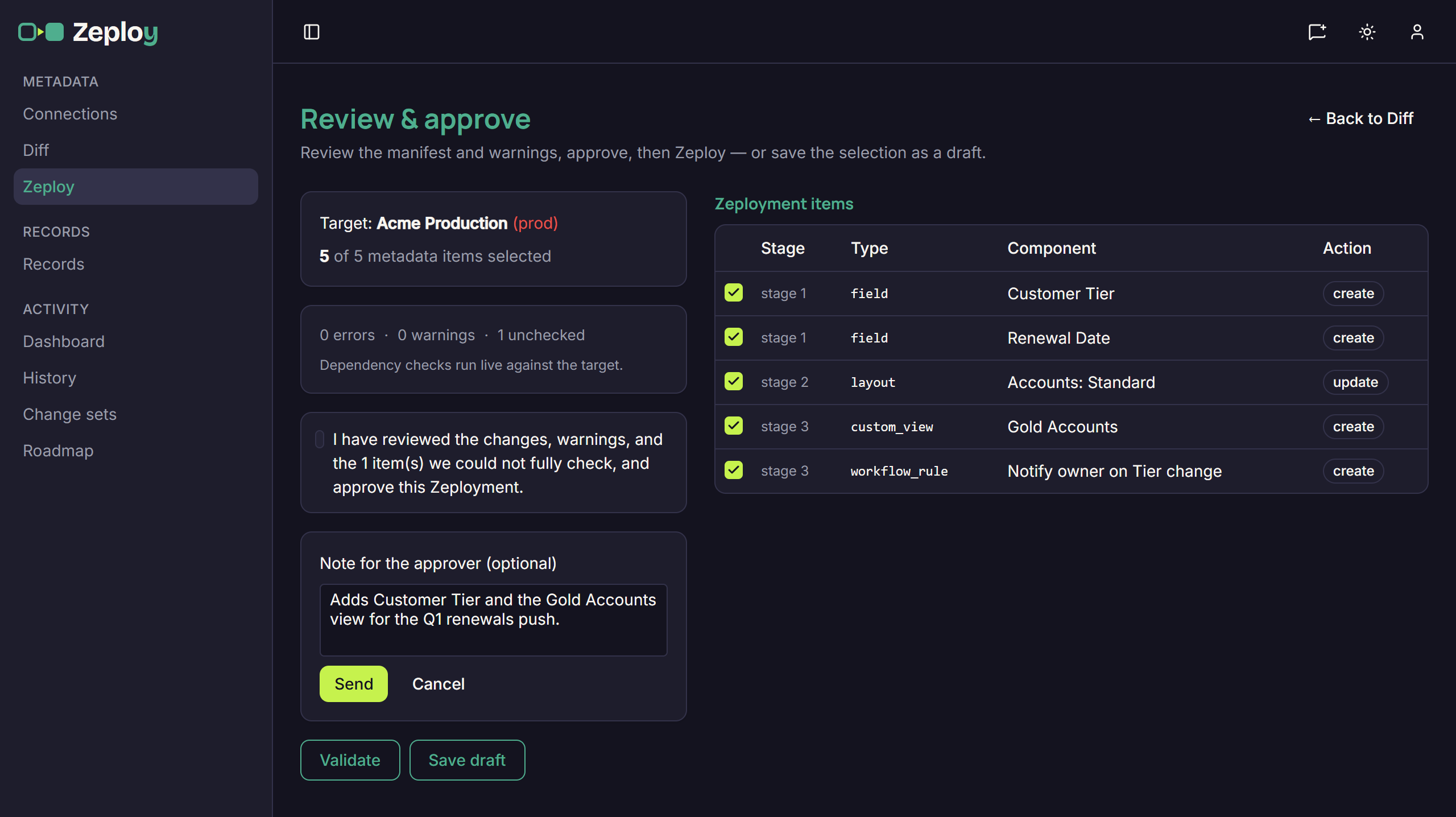
The member picks changes on the Diff page, or rows on the Records page, and chooses Send for Zeployment. The Review & approve screen opens with the selection. They can untick items, read the findings and run Validate to check the selection against the target without changing it. A selected item with an error can't be sent until it is unticked or fixed.
Choosing Send for Zeployment opens a box for an optional note to the approver. After Send, Zeploy opens History on the Awaiting approval tab, and owners and admins get an email. Only one request can be pending for the same changes, a saved draft that has been sent is locked, and the member can Withdraw their own request while it is still pending.
Approve or reject
When requests are waiting, owners and admins see a count next to History in the sidebar. The Awaiting approval tab lists each request with its kind, metadata or records, source and target, who asked, when, how many items and the note.
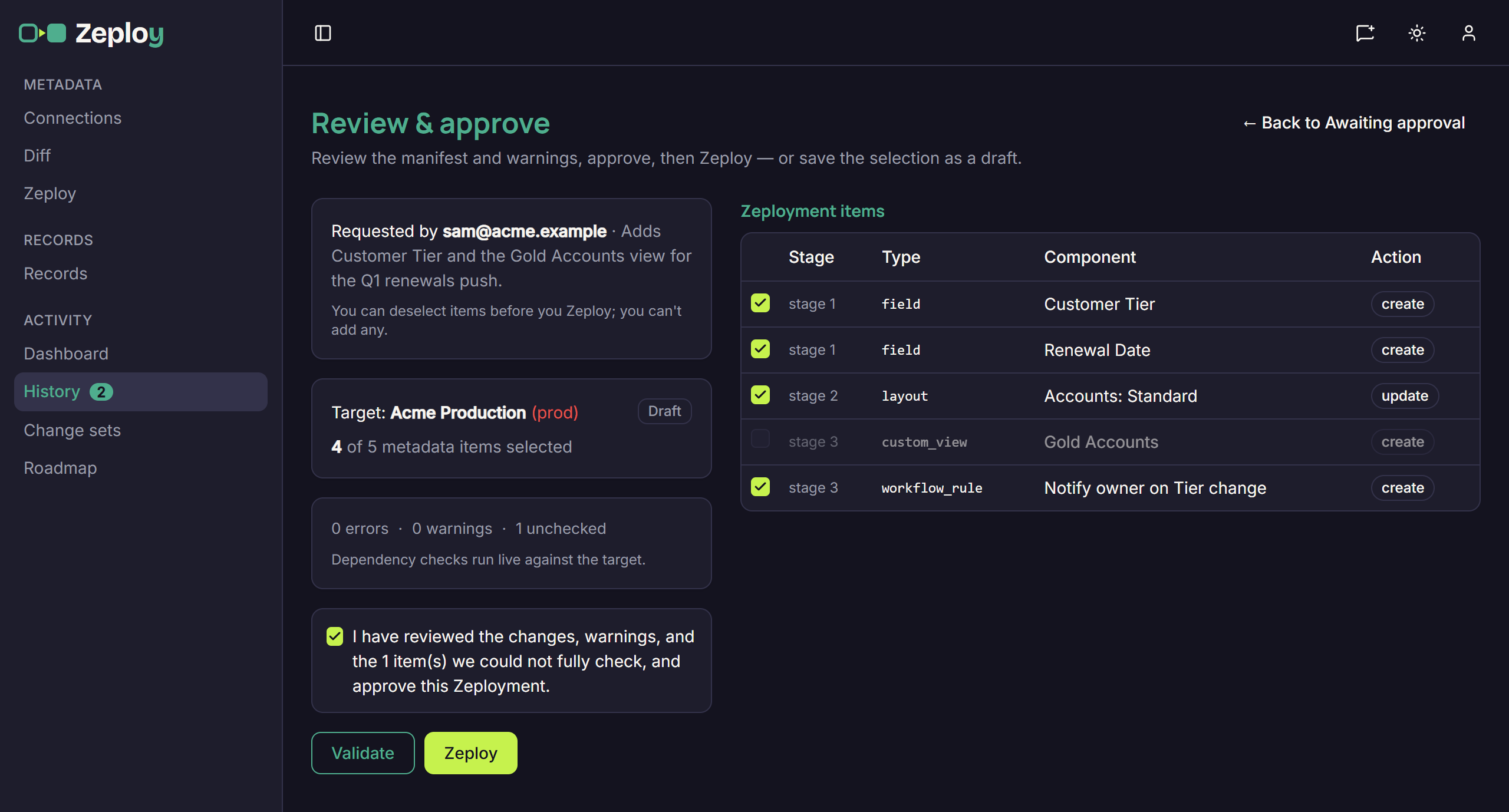
Review & Zeploy opens the same Review & approve screen with a Requested by card showing the person and their note. The approver can untick items they don't want to send but can't add any. The findings are there: an error blocks the Zeployment until that item is unticked, a warning is a caveat, and unchecked means Zeploy couldn't verify something. Validate gives a preview and never approves the request. On a production target the approver ticks the acknowledgement, then Zeploy marks the request Approved, runs the items left ticked, and emails the requester a link to the run.
Reject takes an optional reason. The requester gets an email with it, the reason shows under the status, and nothing changes in the target. The member can send a new request.
The record afterwards, and what to watch for
History keeps the trail. Execution Runs lists each Zeployment, for as long as your Data retention setting keeps it, with its kind, status, mode, target, who ran it, item count and time, and each run page shows every item's result with Zoho's response, exportable as .md or .csv. The Audit tab logs account actions and can be filtered by action, with entries that belong to a Zeployment linking to the run. Decided requests stay on the Awaiting approval tab for a while, showing who decided, the reason for a rejection, or View run for an approval.
Approval applies to members without Can Zeploy, whatever the target. Owners and admins Zeploy directly, and they can approve their own requests. A request needs one decision from one owner or admin. Zeploy creates and updates but never deletes a component, and there is no undo for records, so the review screen is the place to stop a change. If the changes behind a request are gone, it shows No longer available and the member needs to send a new one.
Questions
- Can I make admins go through approval too?
- No. Owners and admins can always Zeploy. Approval applies to members, and only to those the owner hasn't given Can Zeploy.
- Can the approver change what was requested?
- Partly. The approver can untick items or rows before Zeploying, but can't add anything. To change the request further, reject it and ask for a new one.
- Does running Validate approve a request?
- No. Validate checks the selection against the target without changing it, and it never approves a request. Only Zeploy on the review screen does.
- Do record migrations go through approval as well?
- Yes. A member without Can Zeploy sees Send for Zeployment on the Records page too, and the request appears in the same Awaiting approval queue with the kind records.
- Where do I see who approved a change?
- On the Awaiting approval tab in History, a decided request shows its status and who decided. Approved requests link to their run, and the run appears under Execution Runs.