Run a diff
A diff compares the metadata in two connected orgs, such as a sandbox and production, and lists every difference. You use it to decide what to Zeploy. Running a diff takes a fresh snapshot of both orgs, so you always compare current state.
Before you start
- Two connections in the same organization. See Connections.
- Nothing is written to either org by a diff.
Steps
Open Diff from the sidebar, under Metadata.
Choose a Source and a Target. The Source is where the changes are. The Target is where they would go. Either can be sandbox or production. The Target list only offers other connections in the same organization as the Source, so pick the Source first.
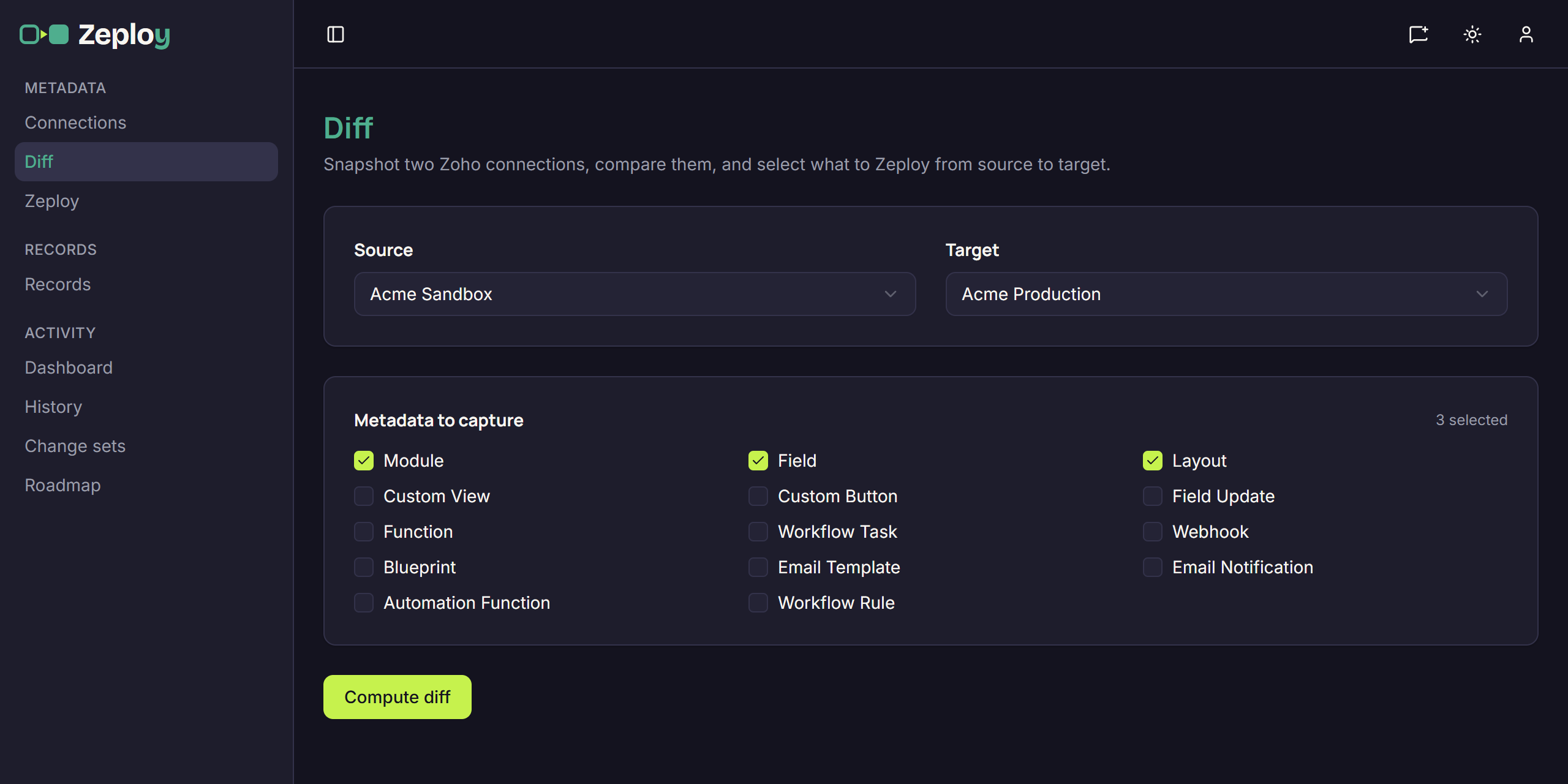
The Diff setup with Acme Sandbox as Source, Acme Production as Target and three types ticked Tick the Metadata to capture. Nothing is ticked at first. Choose the types to compare: Module, Field, Layout, Custom View, Custom Button, Field Update, Function, Workflow Task, Webhook, Blueprint, Email Template, Email Notification, Automation Function and Workflow Rule. Fewer types means a faster diff.
Choose Compute diff. It stays disabled until both orgs and at least one type are chosen. The button reads "Snapshotting…" while Zeploy captures both orgs at the same time. Each side shows its status (pending, running, then complete with a component count).
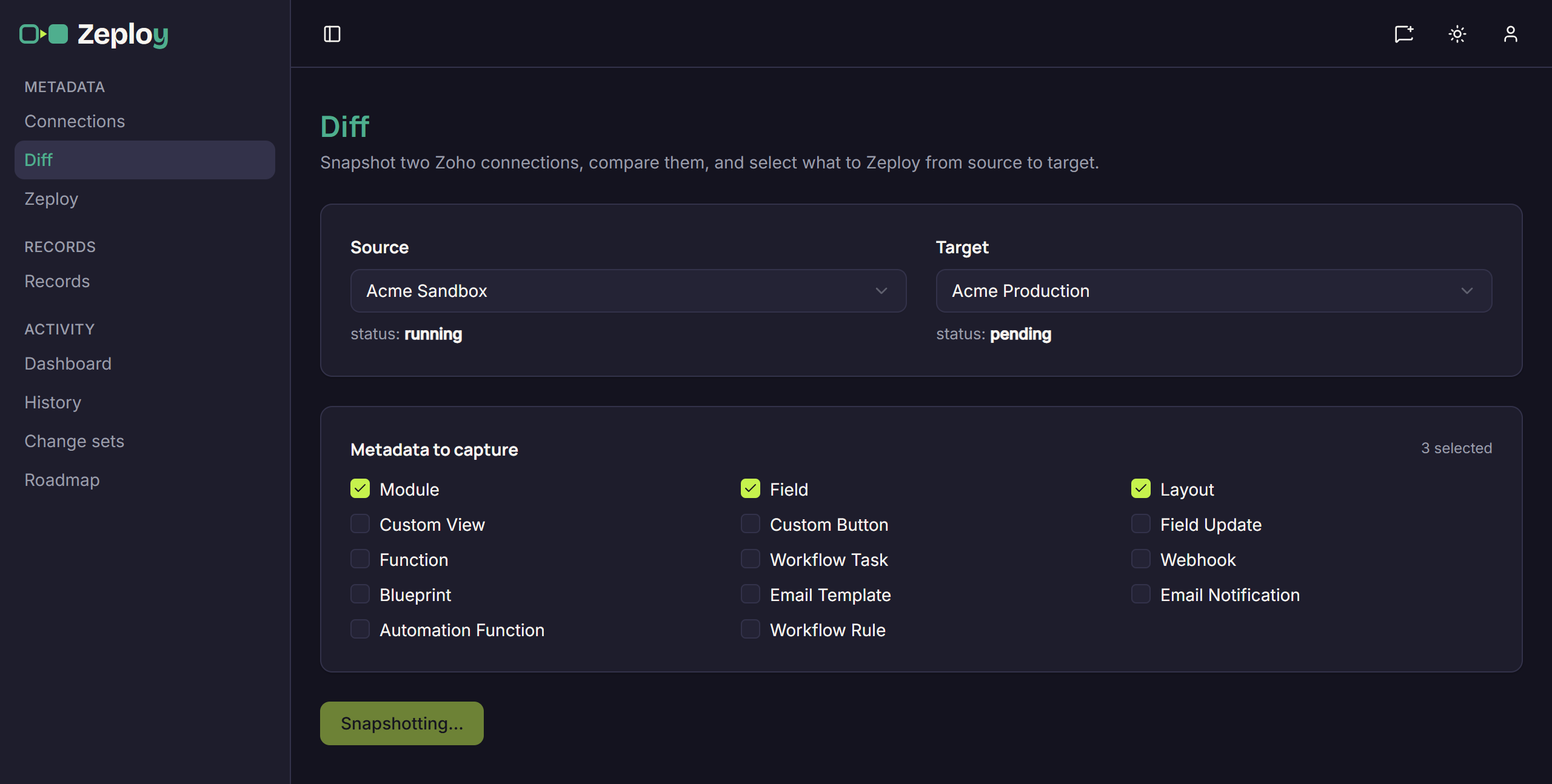
The Diff setup while both orgs are being snapshotted Read the summary. When it finishes, the setup collapses into one line: Source → Target, the number of metadata types, "snapshots complete" and the number of changes. Choose Edit setup to change the orgs or types, and Cancel to go back to your results.
Filter the results. The four pills toggle each group and show its count: Only in your source, Different, Only in your target, and Identical. Identical is hidden until you turn it on.
Open a group. Results are grouped by module under Modules, with sections below for org-wide types such as Functions and Webhooks. Groups start collapsed. Choose a row's view changes to see the field-by-field comparison, or view for something that exists on only one side.
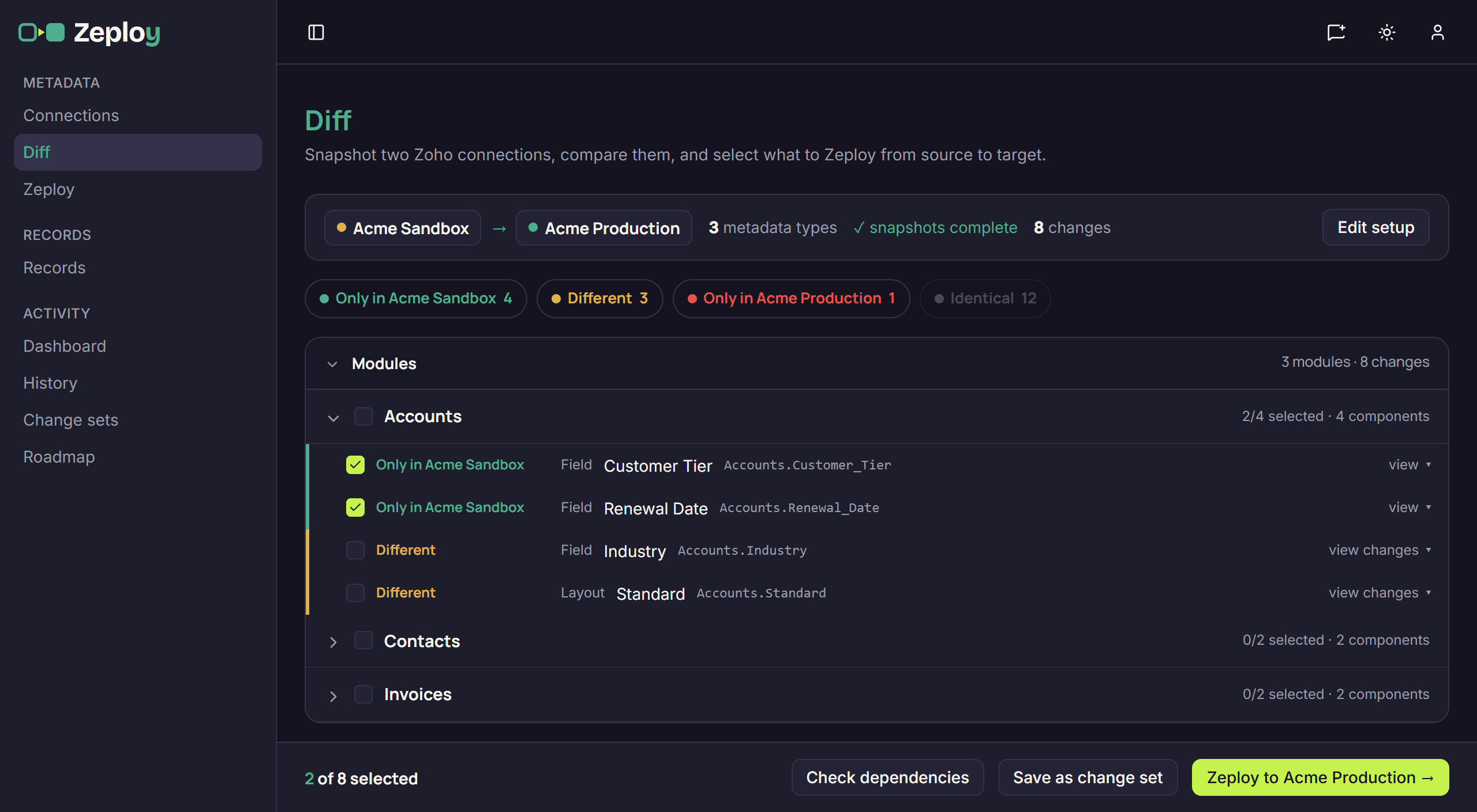
Diff results grouped by module with two rows selected Select what to Zeploy. Tick rows, or tick a group header to select everything selectable in it. When you tick a row that needs other new or changed items, Zeploy ticks those too and tells you how many it added. The bar at the bottom shows how many are selected.
Continue. In the bar at the bottom:
- Check dependencies lists anything missing for your selection, or says "No dependency issues found for the current selection."
- Save as change set asks for a name and saves the selection for later. See Change sets.
- Zeploy to your target takes you to the review screen. If you can't Zeploy directly, this button reads Send for Zeployment. See Review and Zeploy.
Good to know
- "Only in" means the item exists in that org and not in the other. Items that exist only in the target are shown for information. Zeploy never deletes a component, so they can't be selected. An update can still remove things inside one, such as fields from a layout or picklist values; see Review and Zeploy.
- A row with a Manual step required note can't be selected. The note says why, and what to do by hand.
- A Heads up note on a row or above the results means the row can still be selected, but with a caveat. Read it first.
- A small "N not captured" note under a side means a few components couldn't be read from Zoho. They are missing from this diff.
- Your setup and selection are remembered in your browser tab. If you open the review screen and come back, the page is restored.
- Large orgs take longer. Zeploy waits up to five minutes for each snapshot before reporting a timeout.