Apply records
After you pick rows on the Records page, you confirm them on a review screen and then Zeploy them. A live console shows how each row went. If you can't write to the target yourself, you send the rows to an owner or admin to approve.
Before you start
- Run a records diff and select at least one Insert or Upsert row. See Compare records.
Steps
Click the button in the bottom bar of the Records page. It reads "Zeploy to target →" if you can write to the target, or "Send for Zeployment →" if you can't. The button stays off until at least one row is ticked.
Check the Review & approve page. The left side shows the target with its environment, how many rows are selected, and the module. On the right, the Rows to promote table lists each row's record, source id and action (Insert or Upsert). Untick a row to leave it out. Use Back to Records to go back and change the selection.
Acknowledge a production target. When the target is production, its name is shown in red and a checkbox reads "I have reviewed the changes above and approve this Zeployment to production." Tick it. The Zeploy button stays off until you do.
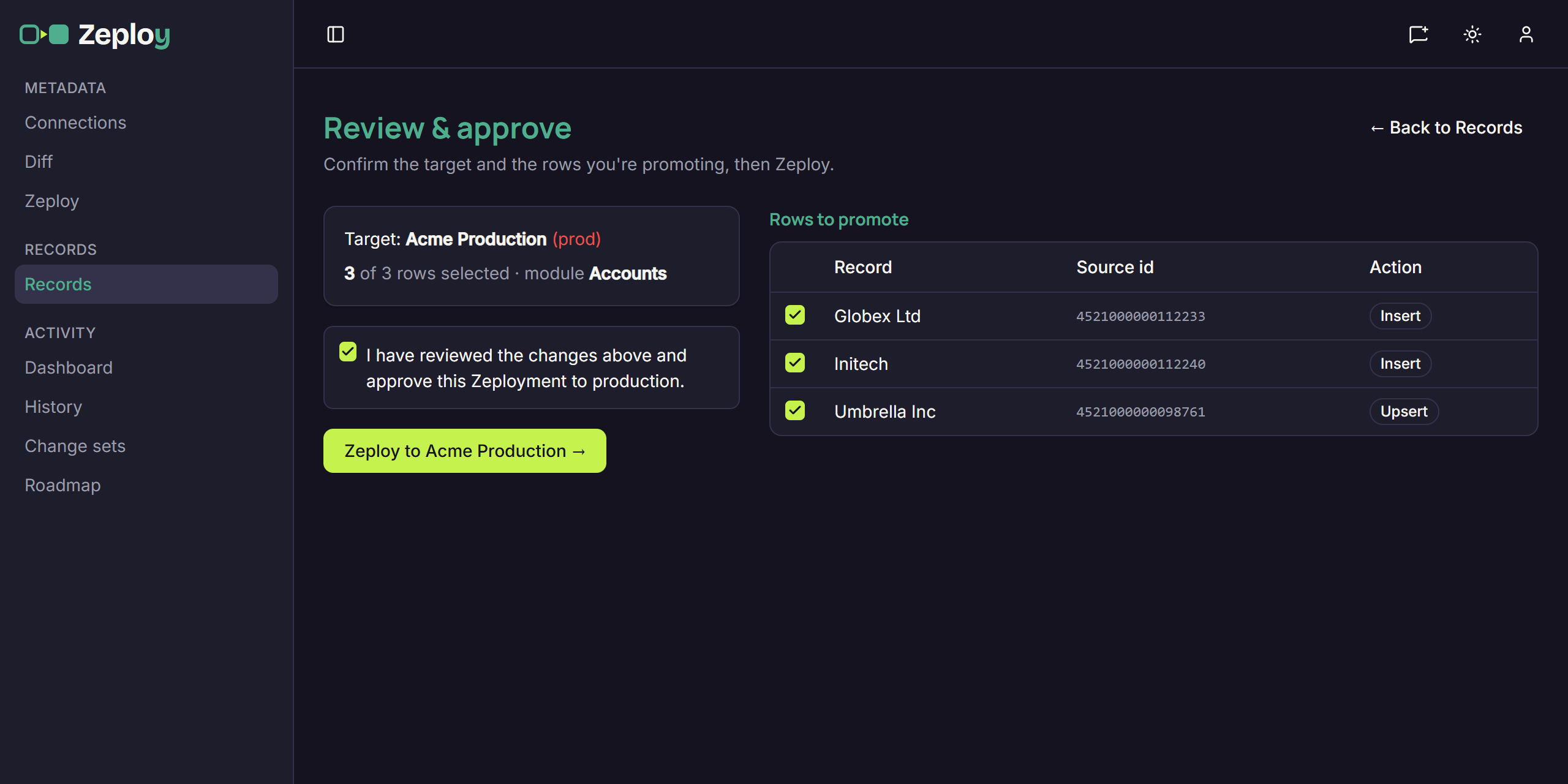
The review page for a production target Click Zeploy. If you can't write to the target, click Send for Zeployment, add an optional note for the approver and click Send. Zeploy takes you to Awaiting approval in History. See Approve or reject.
Watch the Records Zeployment page. It updates itself every couple of seconds. At the top you see the status, the module, how many rows were applied out of the total, and the number of unmapped lookups. Below that, counts per status and a table with one line per row: its status, source id, target id, the action (insert or update) and any error.
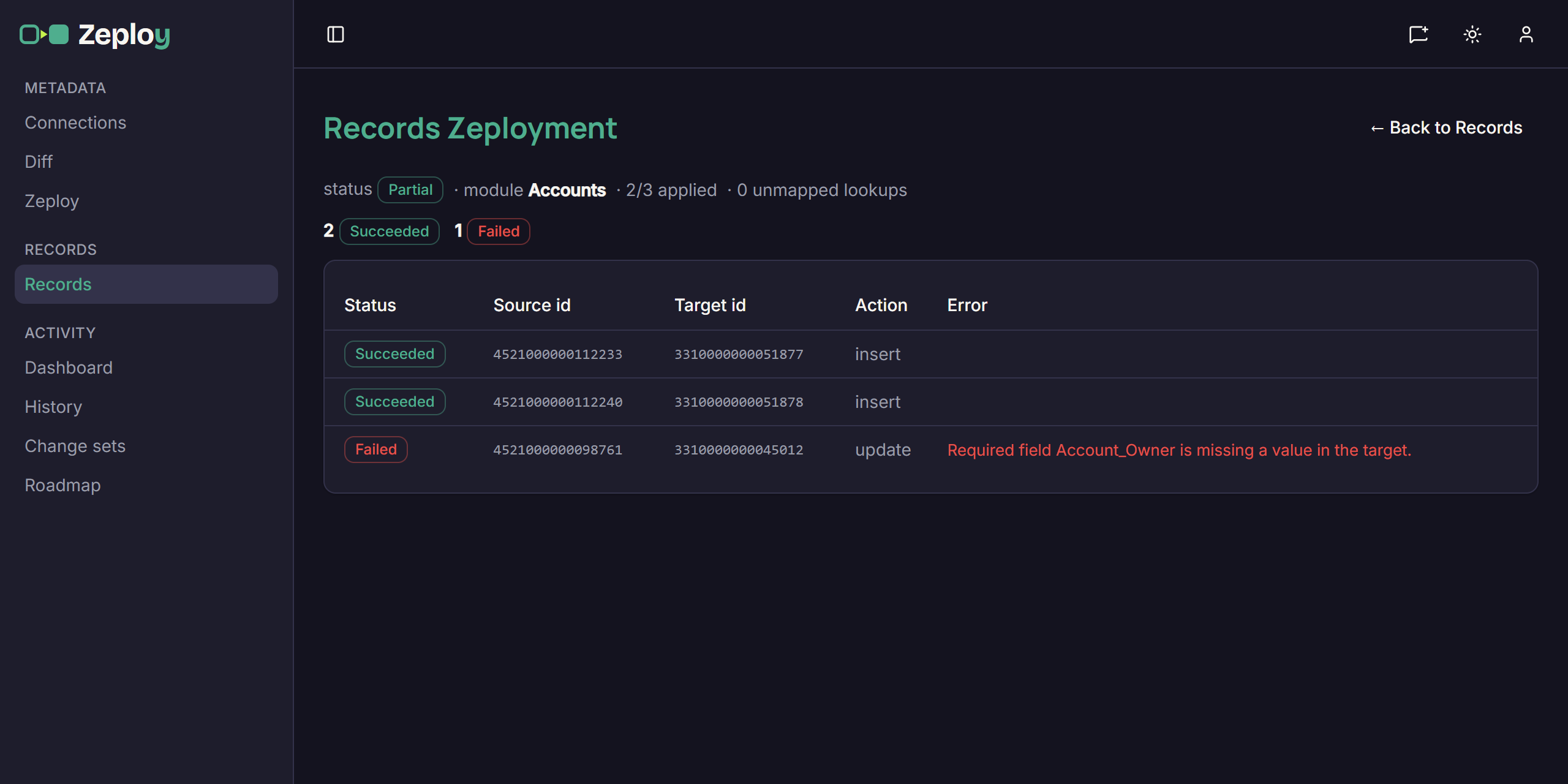
The Records Zeployment console after a partial run
When an owner or admin approves a request
An owner or admin opens a request from Awaiting approval in History and clicks Review & Zeploy. The same Review & approve page opens with the requester's rows ticked and a "Requested by" note. The approver can untick rows but can't add any. Zeploying approves the request and starts the run. See Request approval for the sending side.
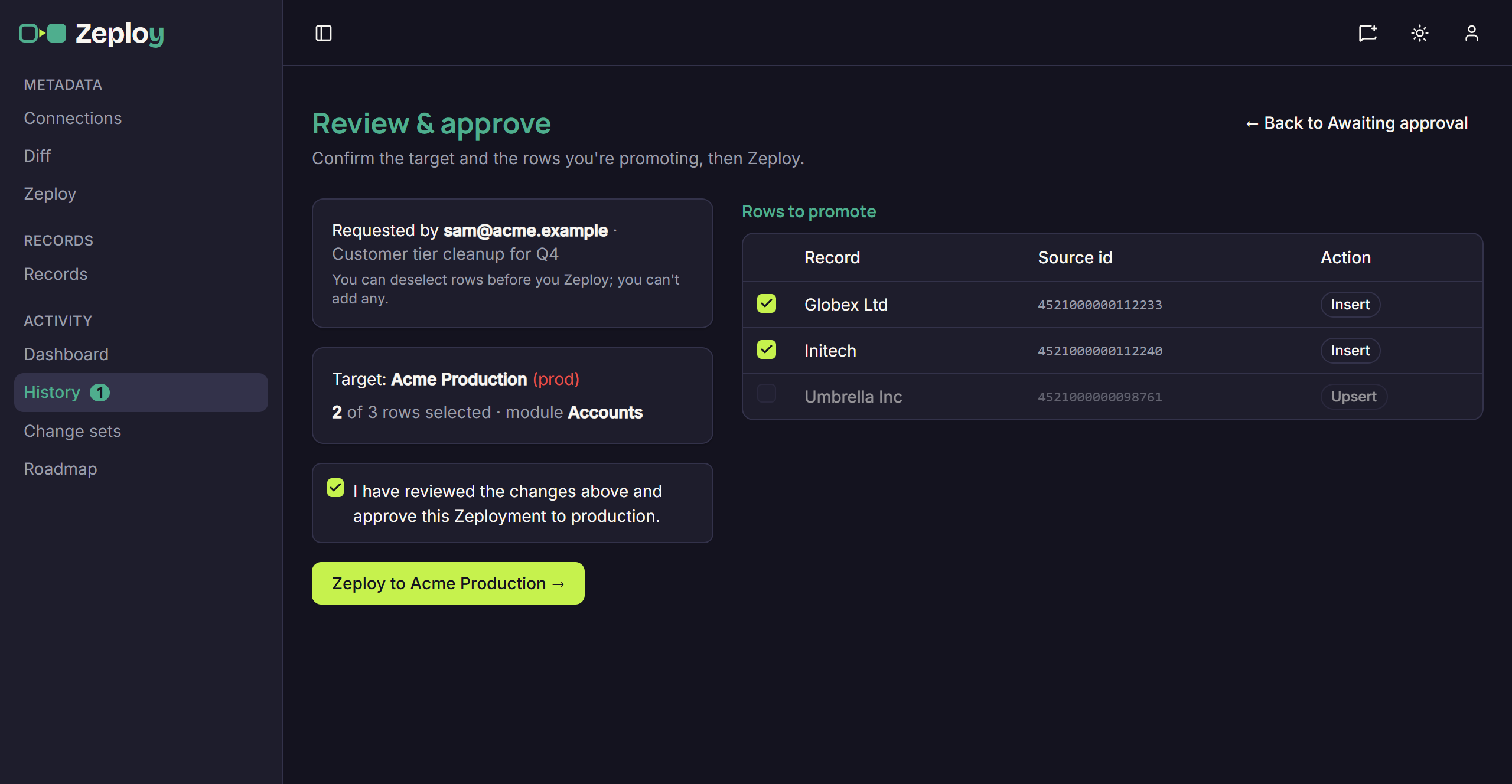
Good to know
- A run ends as Succeeded, Failed or Partial. Partial means some rows went through and some didn't. Each failed row shows its reason in the Error column.
- References to other records are re-pointed at their target ids. A reference whose target record can't be found counts as an unmapped lookup.
- Zeploy has no undo for records. Check the rows on the review page before you continue.
- If a requested row can no longer be loaded, an approver can't Zeploy the request. Reject it and ask for a new one.
- Every run appears in History under Execution Runs, with the kind "records".