
Move Zoho CRM changes from sandbox to production
Move Zoho CRM changes from a sandbox to production, choosing exactly what goes.
The problem
You built the change in a sandbox, as you should. A new field on Accounts, a layout update, a workflow rule that notifies the owner, a function behind it. It works. Now it has to reach production without breaking anything the sales team uses every day.
The hard part is rarely the build. It is knowing exactly what you changed, getting all of it across in the right order, and catching the item that depends on something production doesn't have yet. Miss a field and the workflow that references it fails. Move too much and you overwrite a setting someone changed directly in production last week.
How it's done today
Many admins rebuild the change by hand in production: open Setup in two browser tabs, read the sandbox, click the same settings into production. It works for one field. It gets slow and error-prone for a release with a dozen pieces, and there is no record afterwards of what was moved.
Zoho CRM also has its own sandbox deploy, and it does a lot well. Changes you make in the sandbox are collected in a Change Set, which you can group and filter by component, action, user and date. You deploy either the complete change set or only the items you select. Before anything is pushed, the Start Deployment page checks dependencies and marks each item Qualified or Conflicted, for example when a parent item is missing or a name would clash, and conflicted items wait until you resolve them. Zoho lists a wide range of supported components, including profiles, roles, data sharing settings, workflow rules, blueprints and templates, and replaces IDs in functions and custom buttons for sandboxes that hold production data. Deployment Logs keep six months of history.
Zoho's documentation describes one direction: a sandbox deploying to its own production org. Zoho's documentation doesn't describe deploying to another sandbox or to a different org, or deploying selected changes from production back into a sandbox (production settings reach a sandbox when you create or rebuild it). It doesn't describe an approval step either; the Manage Sandbox permission decides who can deploy. And records added in a sandbox can't be deployed to production.
Compare the two orgs and pick what goes
Zeploy works from a comparison rather than a list of edits. Connect both orgs under one organization on the Connections page. Zeploy reads from Zoho whether each one is a sandbox or production and shows a SANDBOX or PRODUCTION badge on it.
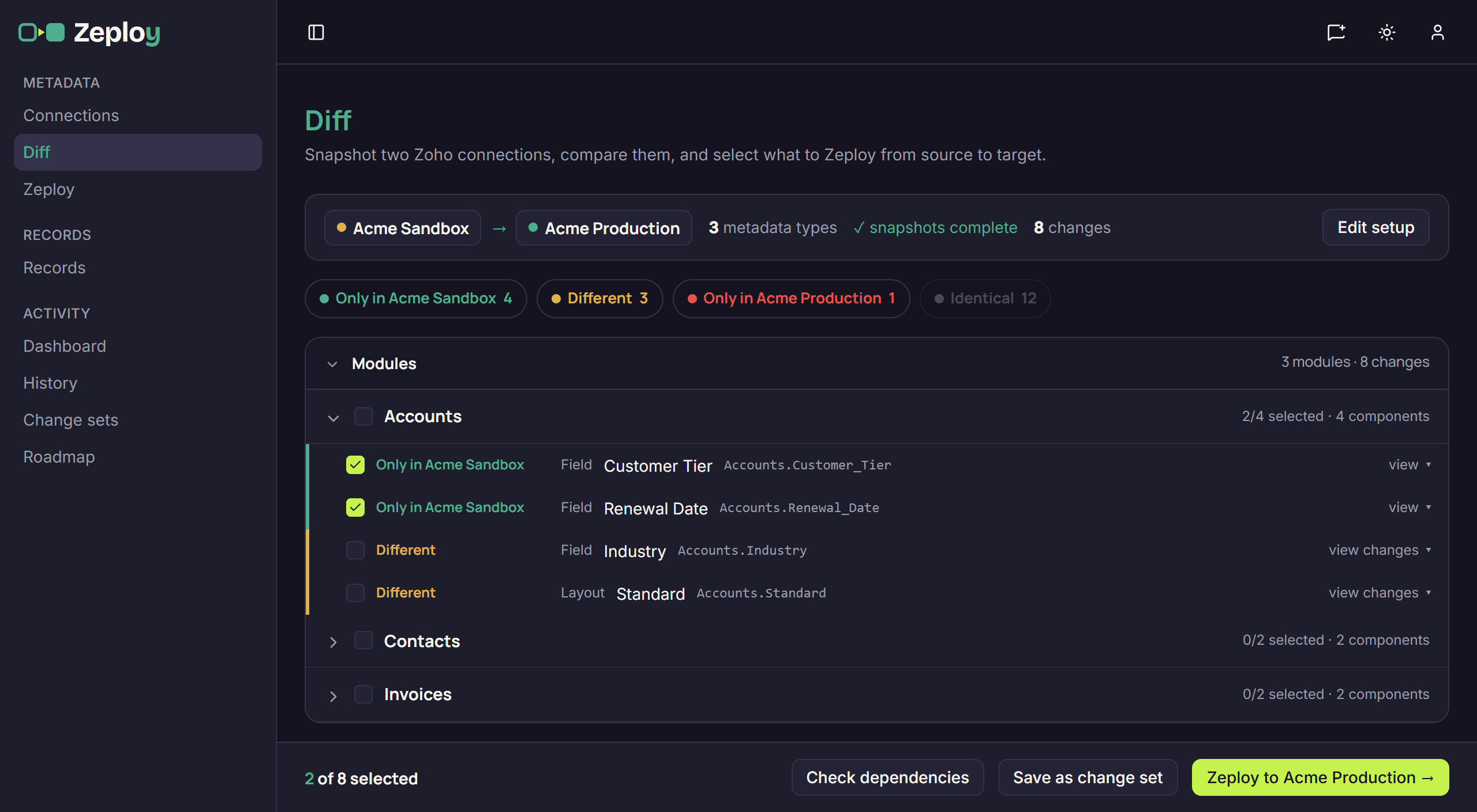
On the Diff page, pick a Source and a Target and tick the Metadata to capture: Module, Field, Layout, Custom View, Custom Button, Field Update, Function, Workflow Task, Webhook, Blueprint, Email Template, Email Notification, Automation Function and Workflow Rule. Choose Compute diff and Zeploy snapshots both orgs and lists what is only in the source, what is different and what is only in the target. Either side can be sandbox or production, so the same screen takes a production setting back into a sandbox to bring it up to date.
Tick the rows you want, one component at a time or a whole module group. When a row needs another new or changed item, Zeploy ticks that too and tells you how many it added. Save as change set keeps a selection you plan to run again.
Validate, approve, then deploy
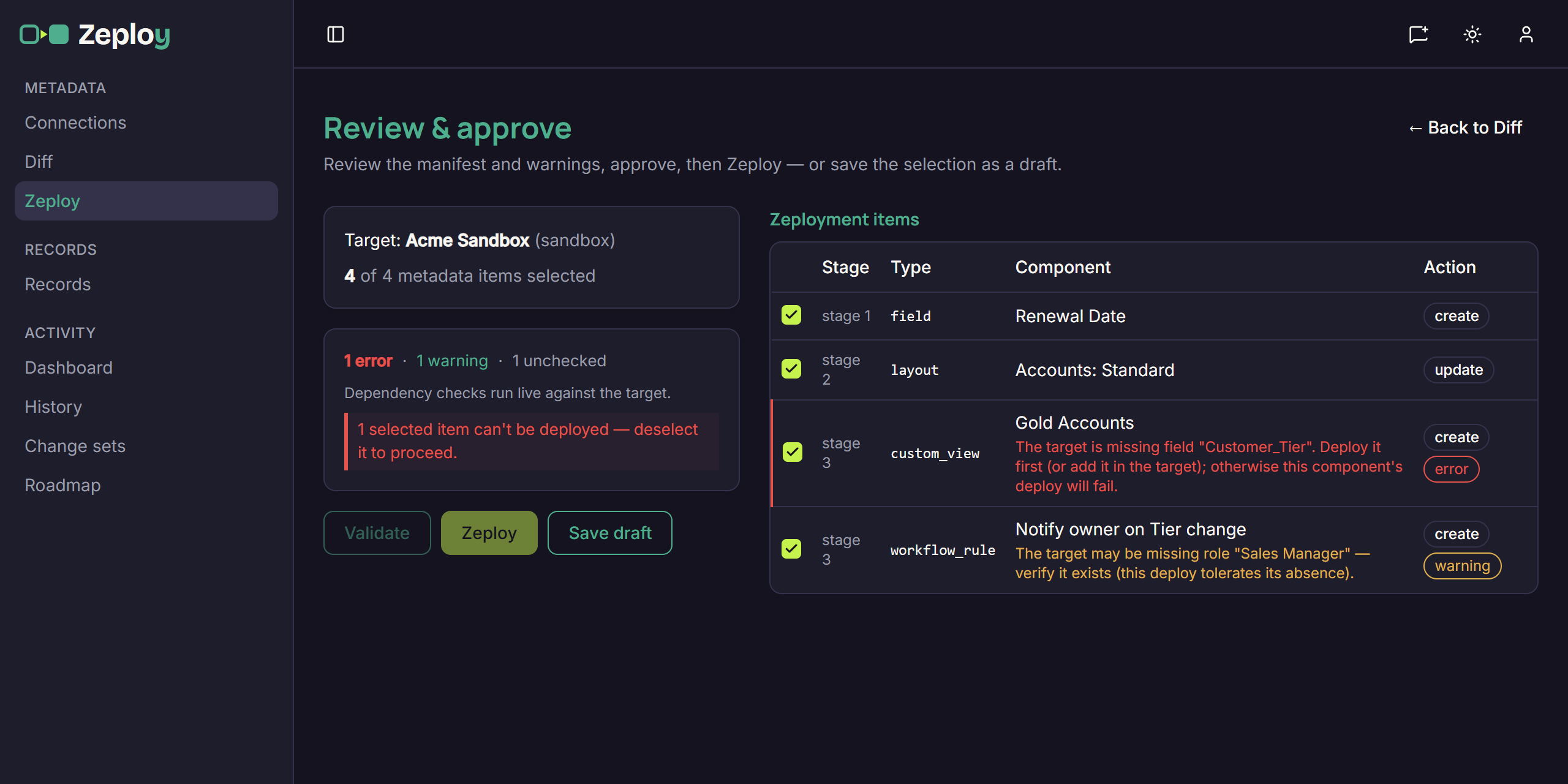
Choose Zeploy to your target and the Review & approve screen lists every item with its stage, type and action, create or update. Checks run straight away and live against the target. An error means the item can't be deployed, for example a custom view that needs a field the target doesn't have, and it blocks the Zeployment until you deselect it or include the missing piece. A warning is a caveat worth reading. Unchecked means Zeploy couldn't verify something.
Validate runs the selection in validate mode without changing the target. When it passes, Validated — Zeploy for real runs the same selection. On a production target you tick an acknowledgement before either button is available. Team members without the Can Zeploy permission see Send for Zeployment instead: their selection goes to the owner and admins, who can untick items, then approve or reject it.
The Zeployment page shows each item as Pending, Running, Succeeded, Failed or Skipped, with Zoho's response under Details, and you can export the run as .md or .csv. Runs are kept under History for as long as your Data retention setting allows. If the release also needs data, the Records page compares one module between two orgs and applies the rows you pick, with lookups re-pointed to the target's records.
What to watch for
Zeploy never deletes a component: items that exist only in the target are shown for information and can't be selected, so deleting a field, layout or rule from production is still a manual job. An update can remove things inside a component, such as fields from a layout or picklist values. A removed picklist value appears under Warnings on the review screen, marked destructive, and the run page lists any fields removed from a layout.
Some rows carry a Manual step required note and can't be selected; the note says what to do by hand. A Heads up note means the row can go, with a caveat. Functions and a few other components need an extra MCP authorization on the connection, shown on the Connections page.
If an item fails, the run carries on with the others. Check the Needs attention card afterwards for anything Zoho wouldn't take, and finish those in the target org. When you select new workflow rules you can create them as inactive, which gives you a chance to look at them in production before they fire.
Questions
- Can I deploy from production to a sandbox?
- Yes. On the Diff page either side can be sandbox or production, so pick production as the Source and the sandbox as the Target to bring selected configuration back into the sandbox.
- Does Zeploy replace Zoho's sandbox deploy?
- Not necessarily. Zoho's tool covers components Zeploy's Diff page doesn't list, such as profiles and roles. Zeploy adds a side-by-side comparison, per-component selection in either direction, Validate, approval requests and run history.
- Does a diff change anything in my orgs?
- No. Computing a diff only reads both orgs. Nothing is written until you choose Zeploy on the review screen, and a Validate run leaves the target unchanged.
- Can I move test records from the sandbox too?
- Yes, through Records, which is separate from metadata. You choose a module and match fields, review Insert and Upsert rows, and apply the ones you tick.