Request approval for Zeployment
If you don't have permission to Zeploy, the Review screen offers Send for Zeployment in place of Zeploy. You send your selection, with an optional note, to the owner and admins. One of them approves it and the Zeployment runs.
Before you start
- Owners and admins Zeploy directly. A member needs Can Zeploy, which only the owner can give. Without it you use Send for Zeployment. See Team and permissions.
- You need a selection with no errors on the Review screen. See Validate.
Steps
Pick your changes on the Diff page. The button there reads Send for Zeployment → instead of "Zeploy to ...". Click it to open the Review screen.
Review the items. You can untick items, check the findings, and run Validate. You don't tick the production acknowledgement to send. The approver does that.
Click Send for Zeployment. A box opens: "Note for the approver (optional)".
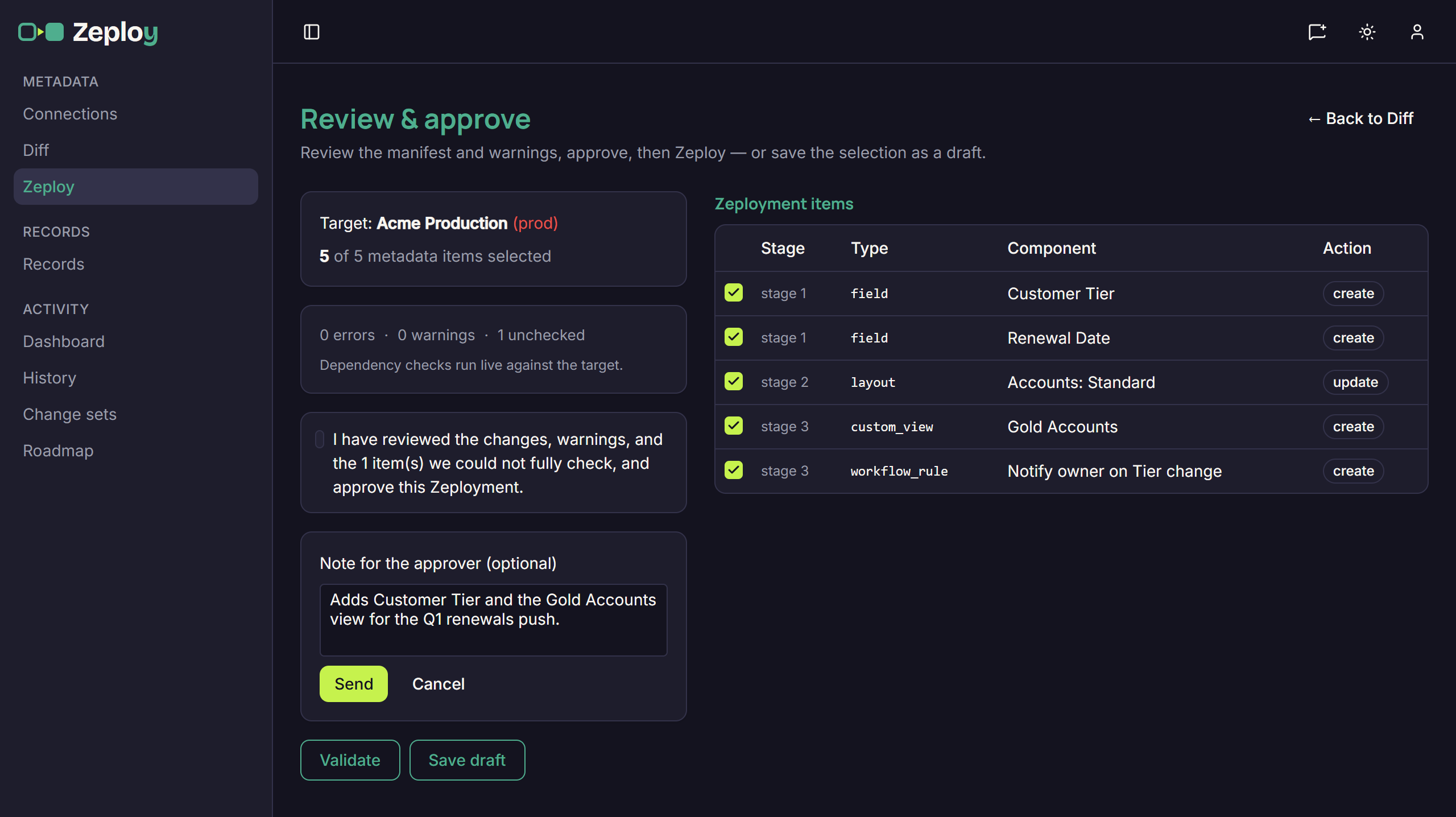
The note box that opens when a member clicks Send for Zeployment Add a note and click Send. Tell the approver what the change is for. Cancel closes the box.
Wait for a decision. Zeploy opens History → Awaiting approval at your request. Owners and admins get an email. When they approve or reject, you get an email too, and an approval email links to the run.
You can also send from the Zeployment page after a Validate run, using the button there.
Good to know
- A draft you've sent is locked. Its Review screen shows "This draft is waiting for approval" with a link to the request.
- Sending a saved draft sends the whole draft. Use Modify in Diff to change it first.
- Only one request can be pending for the same changes. Zeploy tells you if one already exists.
- To take a request back, open Awaiting approval and click Withdraw. Only you can withdraw your own request, and only while it's pending.
- A request shows one of these statuses: Awaiting approval, Approved, Rejected, Withdrawn, or No longer available. "No longer available" means the changes behind it are gone, so ask for a new request.
- Send is disabled while a selected item has an error.
Approvers: see Approve or reject a request.