Approve or reject a request
When a member sends changes for Zeployment, owners and admins decide. You can review the items, remove ones you don't want, and Zeploy the rest, or reject the request with a note.
Before you start
- Only an owner or an admin can approve or reject. A member with Can Zeploy can't. Owners and admins can also approve requests they sent themselves.
- A number appears next to History in the sidebar when requests are waiting. You also get an email with a link.
Steps
Open History. The Awaiting approval tab opens first when requests are waiting. The queue shows kind, source and target, who asked, when, how many items, their note and the status.
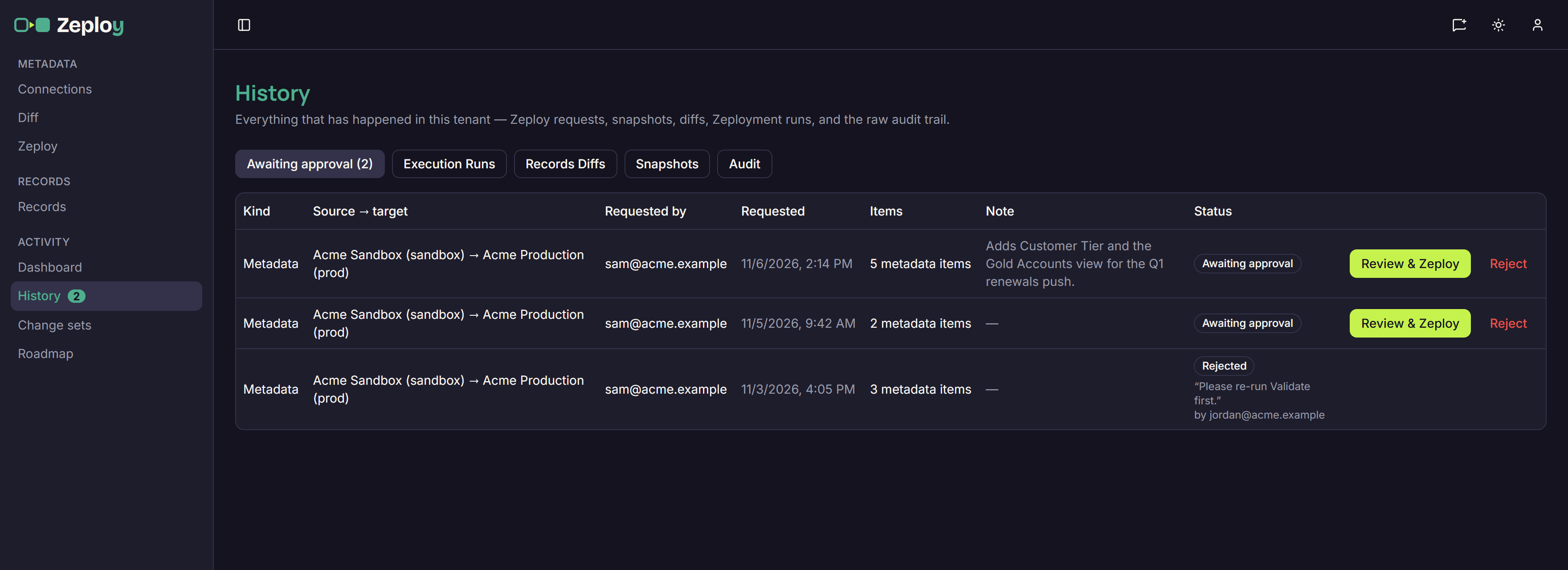
The Awaiting approval tab with two pending requests and one rejected Click Review & Zeploy on the request. Zeploy opens the Review screen with a "Requested by" card showing the person and their note.
Review the items. You can untick items before you Zeploy. You can't add any. Check the findings and run Validate for a preview. A Validate run never approves the request.
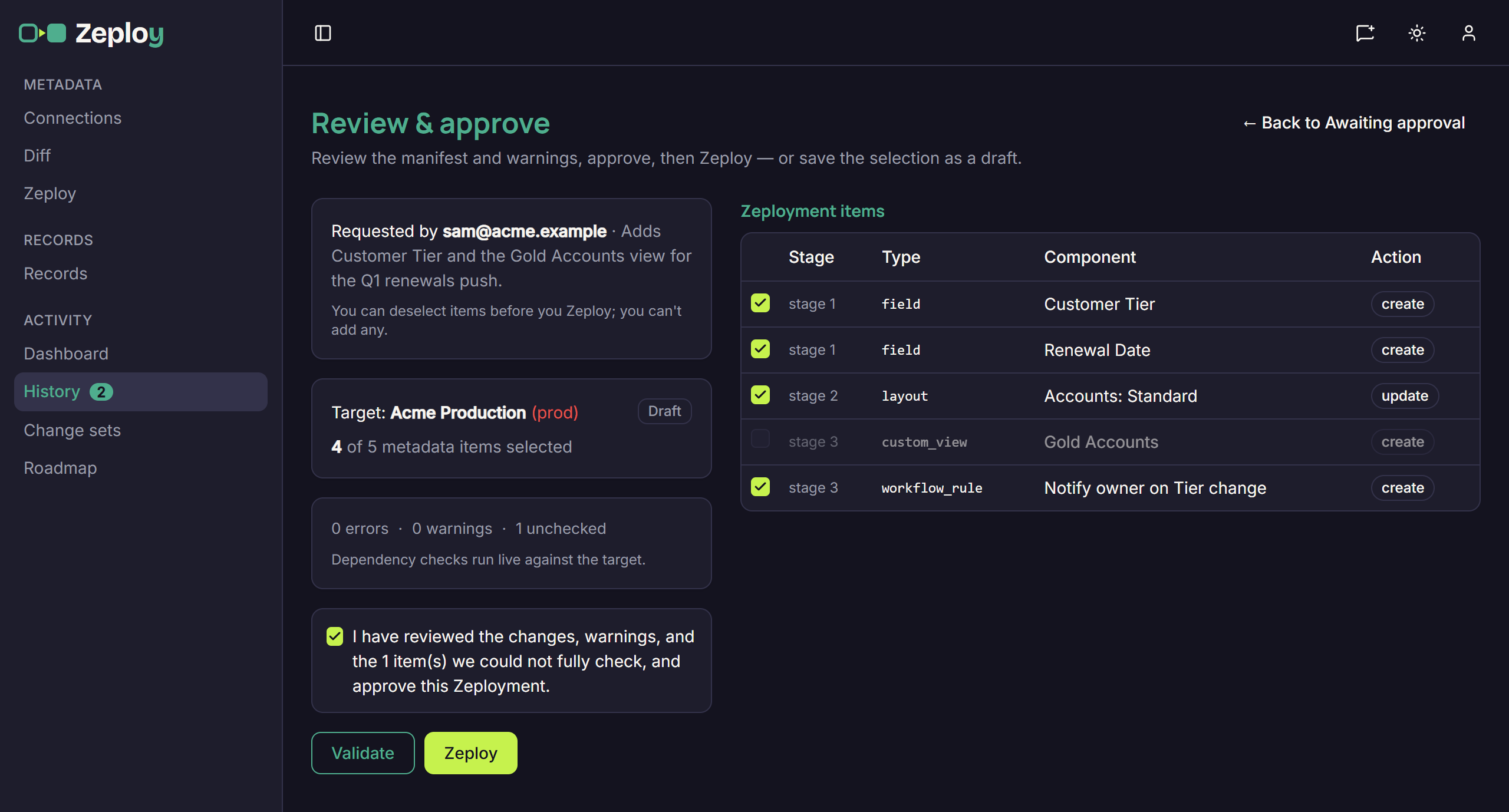
Reviewing a request, with one item unticked Tick the acknowledgement if the target is production, then click Zeploy. Zeploy marks the request Approved, runs the items you left ticked, and opens the Zeployment page. The person who asked gets an email with a link to the run.
Or reject it. Back on the queue, click Reject, type an optional reason, then click Reject request. The requester gets an email with your note, and the reason shows under the status.
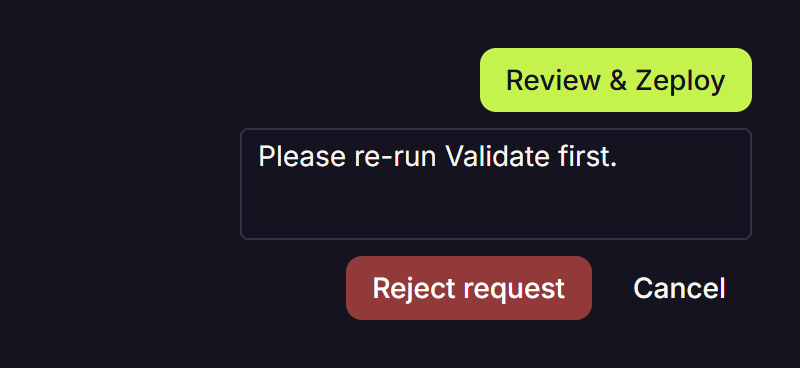
The reject box with a reason typed
Good to know
- Decided requests stay in the queue for a while. Approved ones show View run. Rejected ones show the reason and who decided.
- If you open a request that's already decided, Zeploy says so. If the changes behind it are gone, it says "This request's changes are no longer available — ask for a new one."
- Rejecting changes nothing in the target. The member can send a new request.
- If a selected item has an error, Zeploy stays blocked until you untick it. See Validate.
- To see everything that has run, open History.