Review and Zeploy
After you pick changes in a diff, Zeploy shows them on a review screen before anything is written to the target org. You check the list, confirm if the target is production, then Zeploy and follow the run on the Zeployment page.
Before you start
- You need a finished diff with at least one added or changed item selected. See Run a diff.
- Owners and admins can Zeploy. A member can Zeploy only if the owner gave them Can Zeploy. Everyone else sees Send for Zeployment instead. See Request approval for Zeployment.
Steps
Click the Zeploy button on the Diff page. Its label names the target, for example "Zeploy to Acme Production →". Zeploy opens the Review & approve screen with your selection.
Check the target. The top card shows the target org and its environment (in red for production) and how many items are selected. The card below it shows the error, warning and unchecked counts. See Validate.
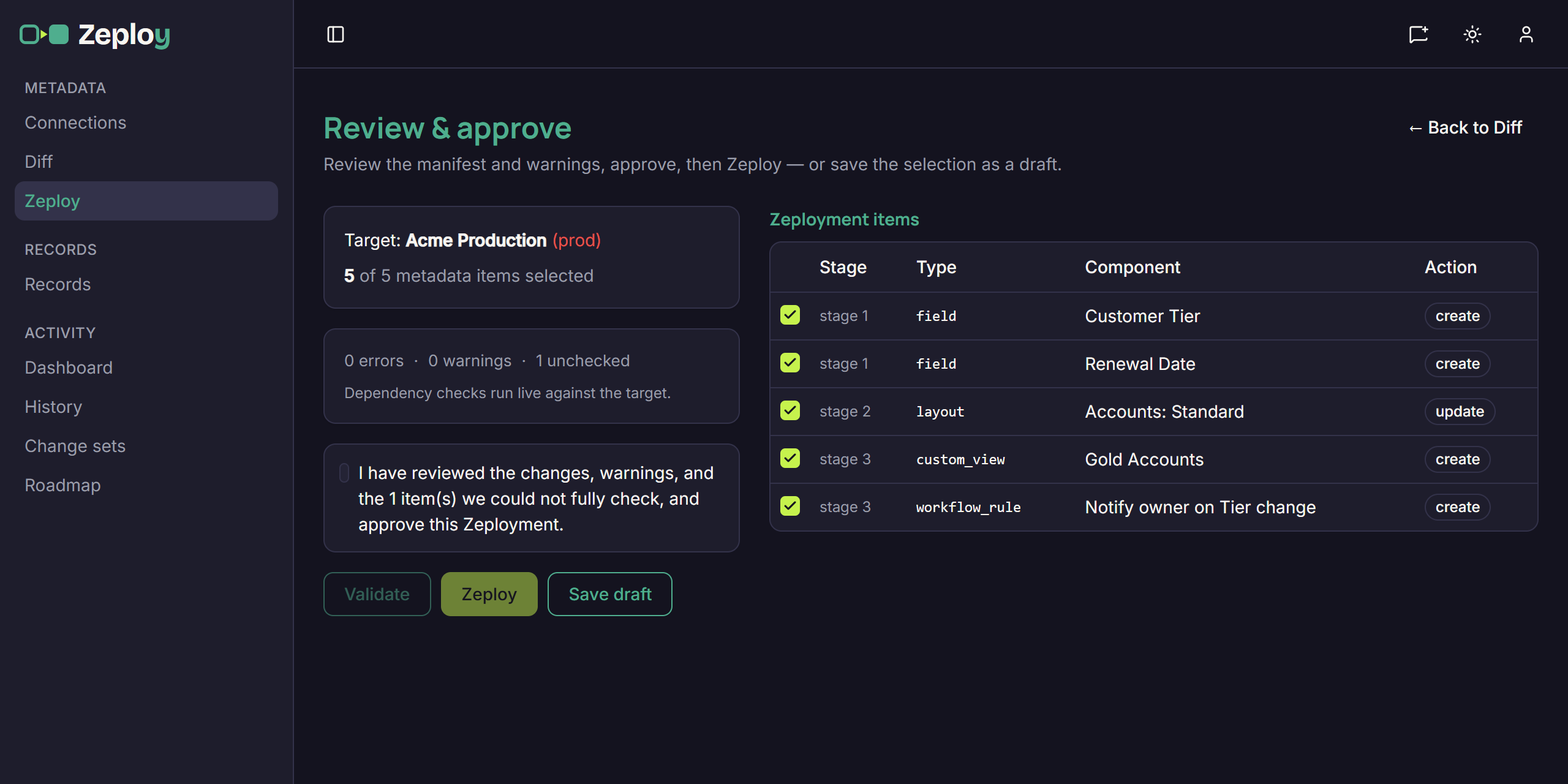
The Review screen for a production target, with the acknowledgement not yet ticked Review the Zeployment items. The list on the right shows each item's stage, type, component and action (create or update). Untick any item you don't want to send. If an item depends on another item in the list, Zeploy ticks that one too and says "Also selected 1 item this depends on."
Handle the extra options, if they appear. If you selected new workflow rules, you can tick Create new workflow rules as inactive. If you selected a blueprint, map each transition owner that Zeploy couldn't match automatically.
Confirm a production target. When the target is production, or when the review shows destructive warnings, tick the acknowledgement: "I have reviewed the changes, warnings, and the N item(s) we could not fully check, and approve this Zeployment." Validate and Zeploy stay greyed out until you do.
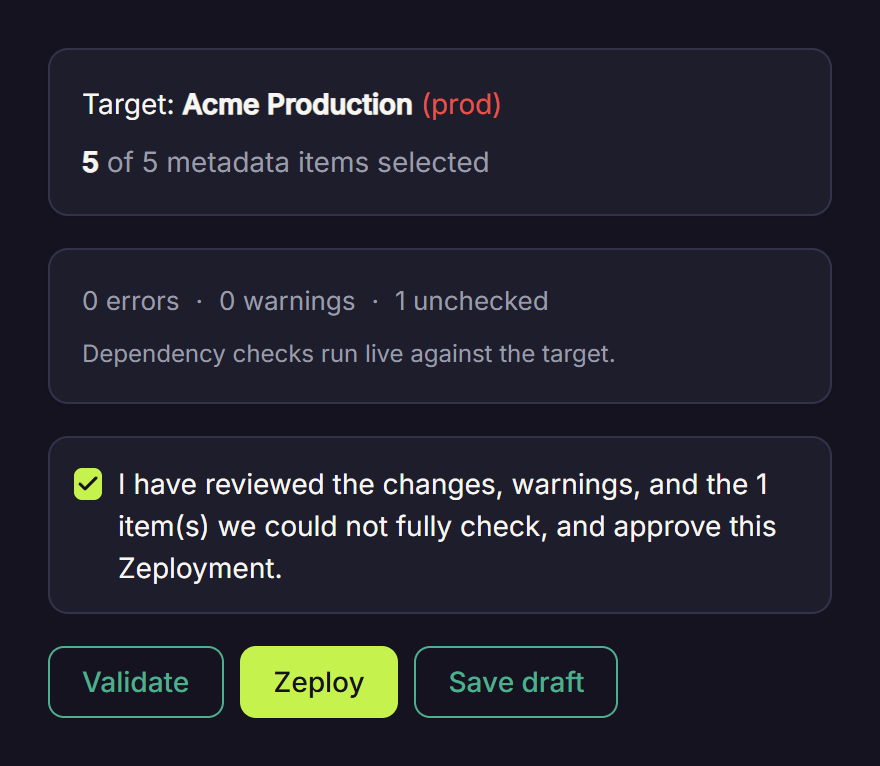
The production acknowledgement ticked, with Zeploy now available Click Zeploy. Zeploy opens the Zeployment page for the run. It refreshes every couple of seconds.
Read the run. The page shows a summary (target, source, who ran it, duration), counts by status, and one table per stage. Each row has a status (Pending, Running, Succeeded, Failed or Skipped) and a Details toggle with Zoho's response. Use Export .md or Export .csv to save a report.
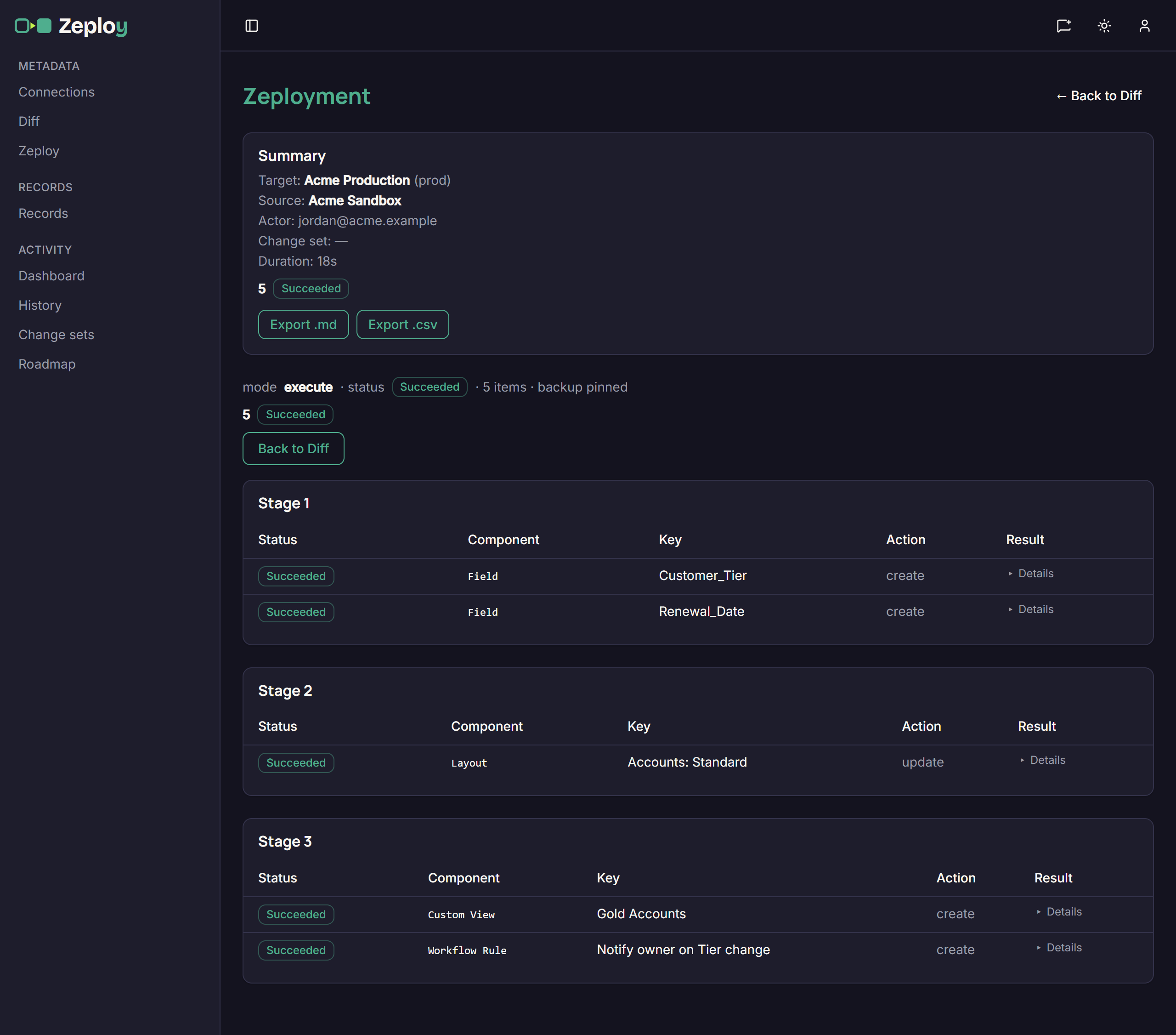
The Zeployment page after a run, with items grouped by stage
Good to know
- If an item fails, the run keeps going with the other items. Check the Needs attention card for items Zoho wouldn't Zeploy or remove automatically, and handle those in the target org.
- Zeploy never deletes a component, but an update can remove things inside one, such as fields from a layout or picklist values. A removed picklist value is listed under Warnings on the review screen, marked destructive, and the run page lists any fields removed from a layout.
- Save draft stores the selection so you can come back to it. Reopen it from the Zeployment page with Review & launch.
- Opening Zeploy in the sidebar without a selection shows "No pending selection. Start from the Diff page."
- Back on the Diff page, a fully successful Zeployment clears your selection so you start fresh. A failed or partial one does not.
- Past runs live under History → Execution Runs. See History.