Your first Zeployment
A Zeployment moves metadata (fields, layouts, functions and more) from one Zoho org to another. The path is the same every time: compare the two orgs, choose the changes you want, review them, and Zeploy. This page is the short tour. Each step links to the full page.
Before you start
- Two connected orgs in the same organization, such as Acme Sandbox and Acme Production. See Connect your first org.
- Permission to Zeploy. Owners and admins can. Members need the Can Zeploy permission. Without it they see Send for Zeployment instead, which sends the request to an approver. See Request approval for Zeployment.
Steps
Run a diff. Open Diff in the sidebar. Pick a Source (where the changes are, such as Acme Sandbox) and a Target (where they go, such as Acme Production). Tick the Metadata to capture you care about, then choose Compute diff. Zeploy snapshots both orgs and compares them. See Run a diff.
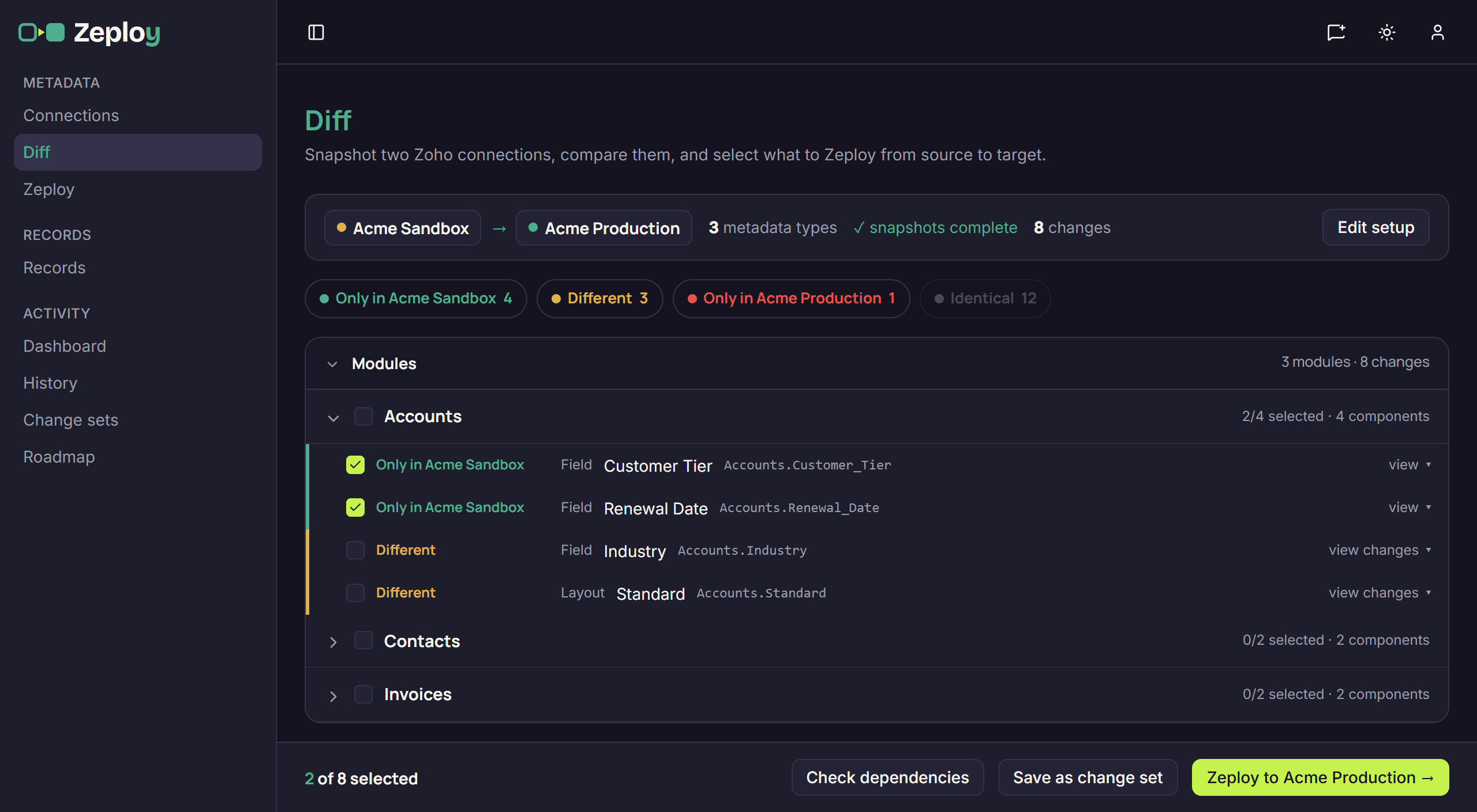
The Diff page after a comparison, with two changes selected Choose what to Zeploy. Results are grouped by module. Open a group and tick the rows you want. Rows marked "Only in" one org, or "Different", can be selected. Zeploy also ticks anything a row depends on. The bar at the bottom counts your selection.
Review and validate. Choose Zeploy to your target (or Send for Zeployment). The Review & approve screen lists your items and any warnings. Choose Validate to test the selection against the target without changing it. See Review and Zeploy and Validate.
Zeploy. Choose Zeploy. For a production target you confirm first. Zeploy then runs and shows progress as it goes.
Check the result. Every run is kept under History. See History.
Good to know
- Nothing changes in either org until you choose Zeploy. Computing a diff only reads.
- Compute diff needs at least one metadata type ticked, and Zeploy needs at least one item selected that is only in the source or is different.
- To move records (data) instead of metadata, see Compare records.