Validate
Validate checks your selected changes against the target org without making them. Zeploy also runs checks on the Review screen as soon as it opens, so you see problems before you launch.
Before you start
You need a selection on the Review screen. See Review and Zeploy. Anyone can run Validate, including members who can't Zeploy.
Steps
Open the Review screen. Look at the counts in the left column: errors, warnings and unchecked.
Read the findings on each row. An item with a problem shows its message under the component name and an error or warning badge. Dependency checks run live against the target and refresh when you change the selection.
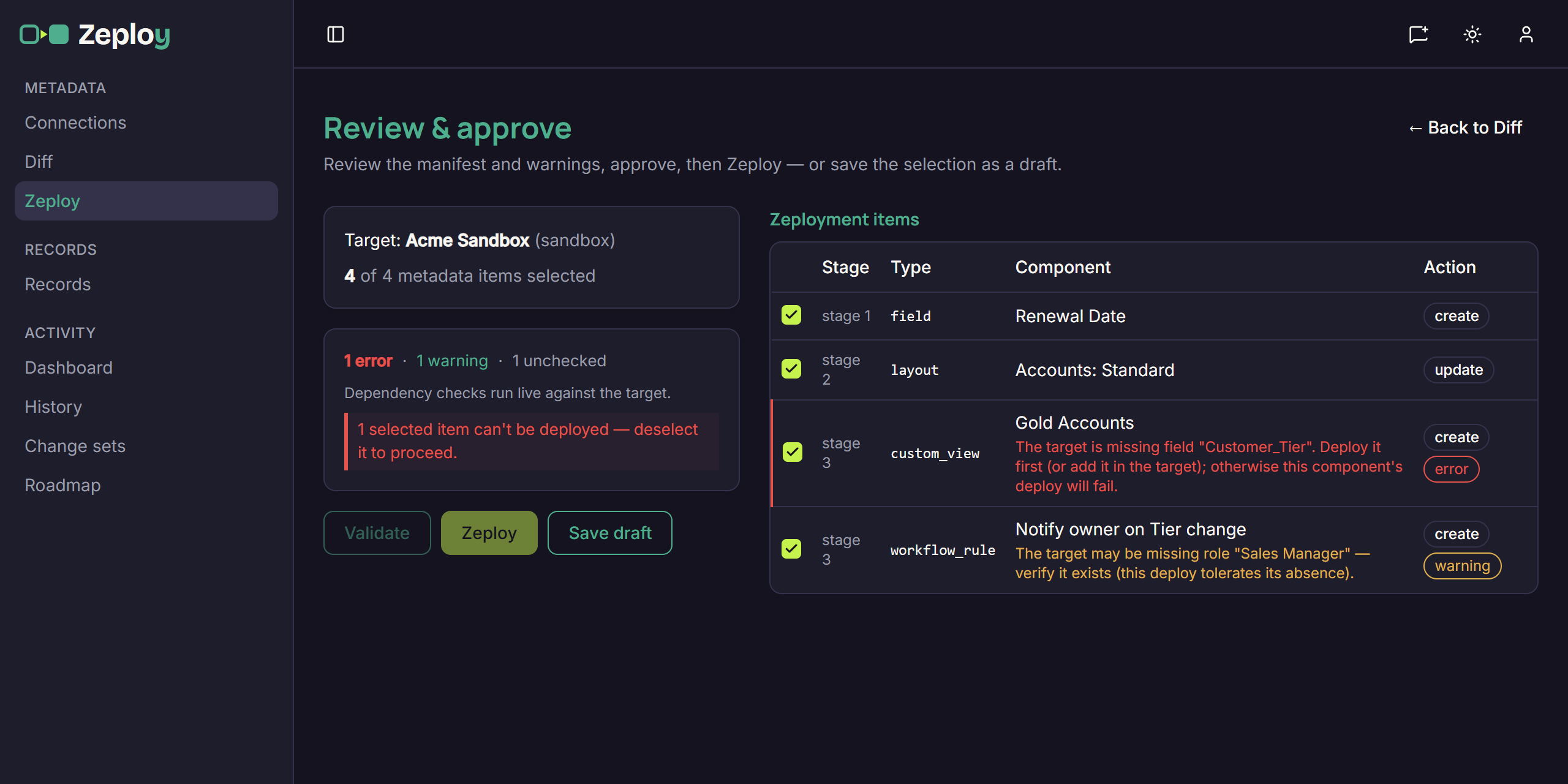
Review screen with one error, one warning and one unchecked finding Fix or deselect anything with an error. A selected item with an error can't be deployed. Untick it, or fix the cause (for example, add the missing field to the target, or include it in the same Zeployment) and review again.
Click Validate. Zeploy runs a validate-mode Zeployment and opens the Zeployment page. Items show as Succeeded when they pass.
Click Validated — Zeploy for real. When you're happy, this button on the Zeployment page runs the same selection for real. A member without Can Zeploy sees Send for Zeployment here instead.
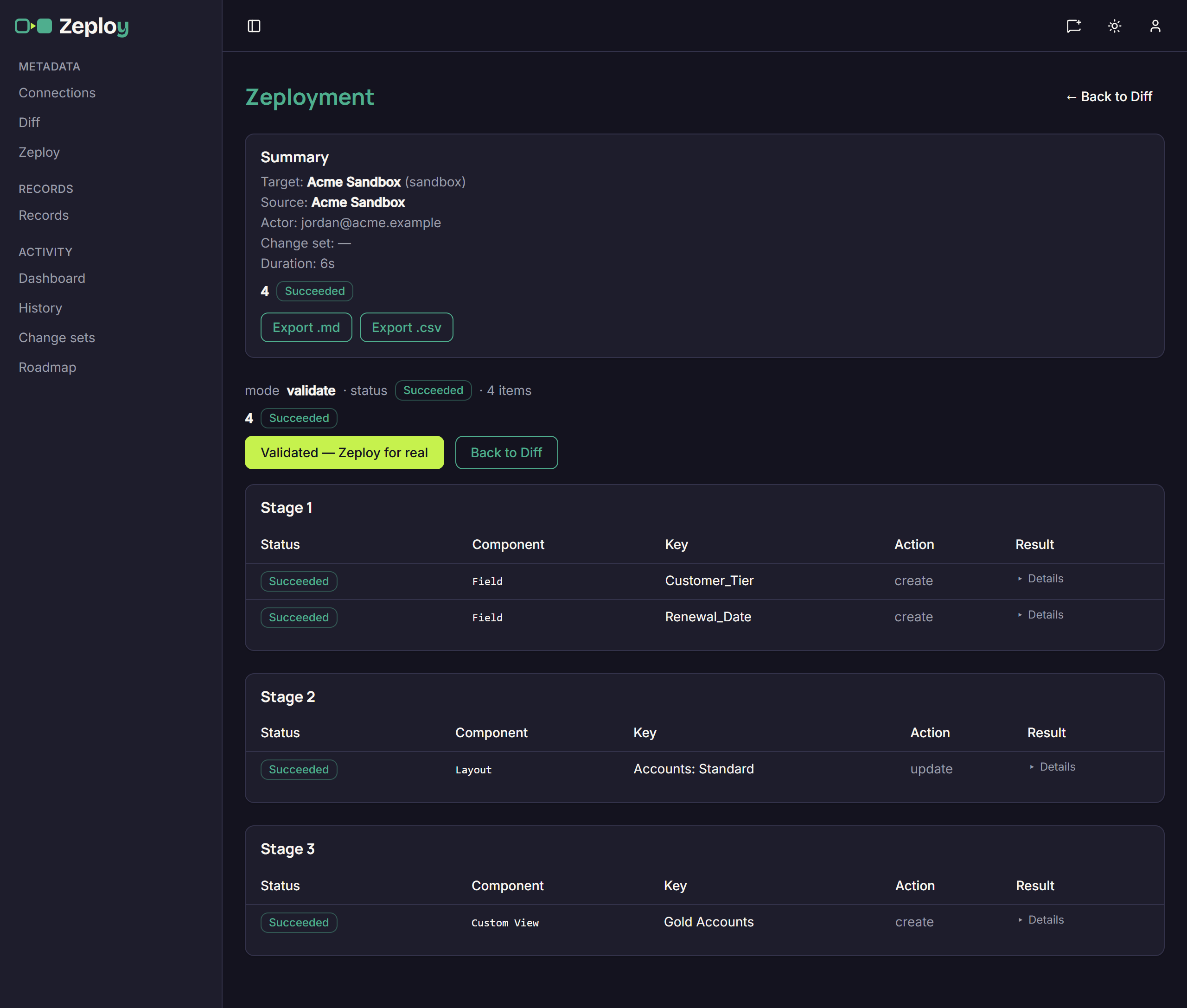
The Zeployment page after a Validate run
What each finding means
| Finding | What it means | Blocks a Zeployment? |
|---|---|---|
| Error | Zeploy knows this item can't be deployed, for example the target is missing something it needs. | Yes, in every environment, until you deselect the item. |
| Warning | A caveat worth reading. The item still deploys. | No. |
| Unchecked | Zeploy couldn't verify something, for example it couldn't read that part of the target. | No, but you acknowledge it when the target is production. |
Good to know
- On a production target you must also tick the acknowledgement before Validate or Zeploy is available. See Review and Zeploy.
- If a blueprint isn't selected, its states and transitions are dropped from the selection and Zeploy tells you how many.
- A Validate run changes nothing in the target, so it keeps your selection. You can go back to the Diff page and carry on.
- Validate never approves a request. See Approve or reject a request.