Close your account
The Danger zone card on your Account page lets you erase your history or close the account for good. Both are permanent.
Before you start
- Erase data is available to owners and admins.
- Close account is owner-only. Members don't see the Danger zone at all.
- An active subscription must be cancelled first. See Plan and billing. An unpaid balance must be paid first.
- Platform admin accounts and suspended accounts can't be closed here.
Steps
- Open Account from the account menu and scroll to Danger zone.
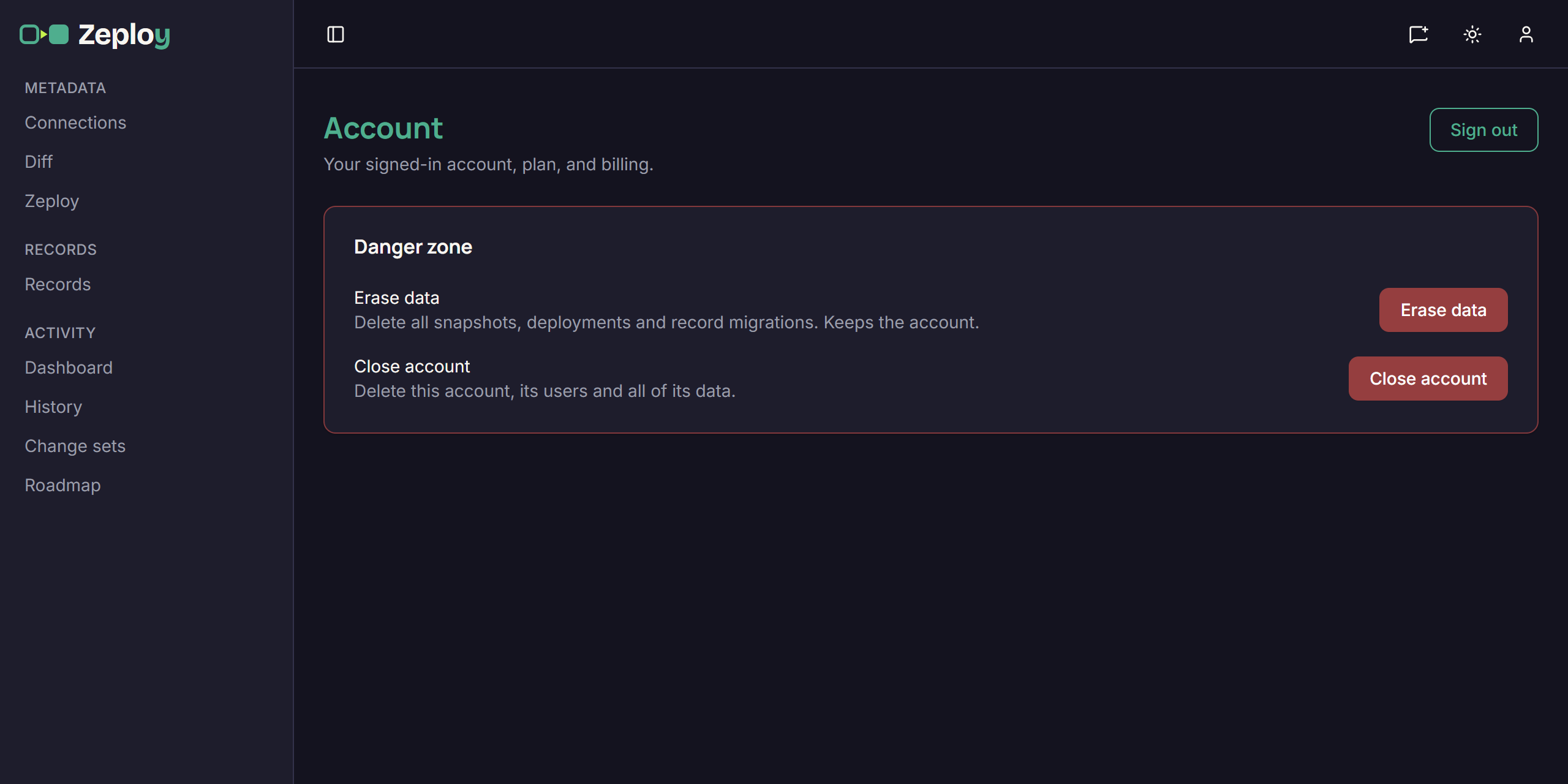
- Choose Erase data or Close account. A dialog opens and counts what will be deleted.
- Read the counts. For Close account the dialog lists Users, Connections, Organizations, Change sets, Snapshots, Deployments, Record diffs and Record migrations. Erase data lists only Snapshots, Deployments, Record diffs and Record migrations.
- Type the phrase. Type
CLOSE ACCOUNT(orERASE DATA) exactly as shown, in capitals. The red button stays disabled until it matches.
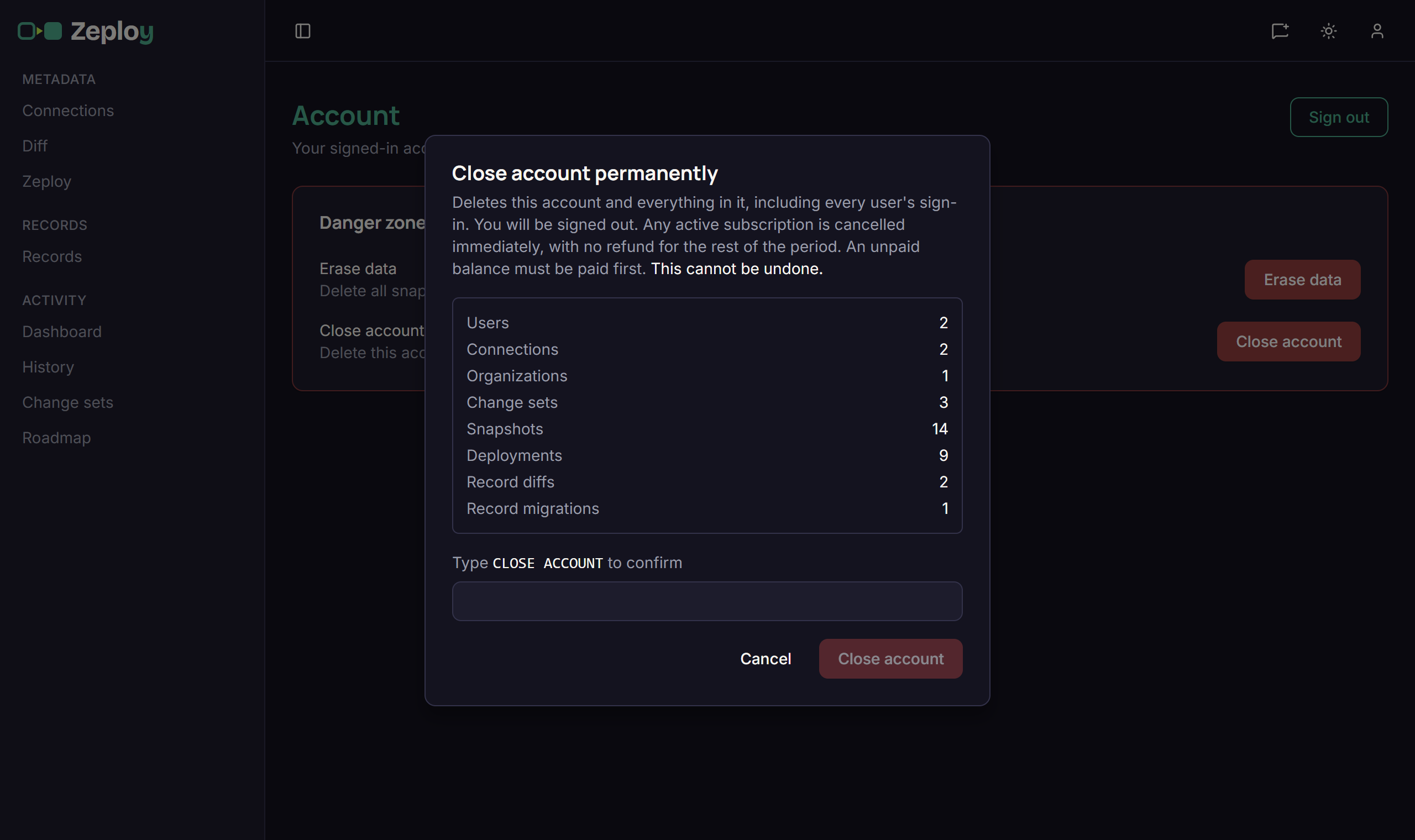
- Click Close account (or Erase data). Closing signs you out and the account no longer exists. Erasing shows "All data erased."
What each action deletes
- Erase data deletes every snapshot, deployment and record-migration record. It keeps your connections, change sets, users and settings. It can't run while a Zeployment is in progress.
- Close account deletes the account and everything in it, including every user's sign-in. Any active subscription is cancelled immediately, with no refund for the rest of the period.
If payment is overdue
An account locked for non-payment shows "Your account is locked for non-payment". The owner or an admin with Manage payment can click Pay now. The owner also gets Pay & close account, which pays the balance and then closes the account automatically.
If a close is waiting on payment, a banner reads "Account closure pending. It completes automatically once your outstanding balance is paid, and the request expires after 24 hours if it isn't." Click Cancel closure to stop it. Choosing Pay now instead also cancels the closure.
Good to know
- Neither action can be undone. There's no recovery.
- Your Zoho orgs are not touched. Only Zeploy's copy of your data is deleted.
- Questions or a suspended account: support@zeployapp.com.