Plan and billing
The Plan & billing card on your Account page shows your plan, its status and your usage, and it's where you change plan, update your card and download invoices. Your trial and first charge are covered in Start your trial.
Before you start
- Owner: can change the plan, cancel, undo a cancel, update the card and see invoices.
- Admin with Manage payment: can update the card and see invoices. See Team and permissions.
- Everyone else: sees the plan read-only, with the note "Only the account owner can change or cancel the plan."
Steps
- Open Account from the account menu and find the Plan & billing card.
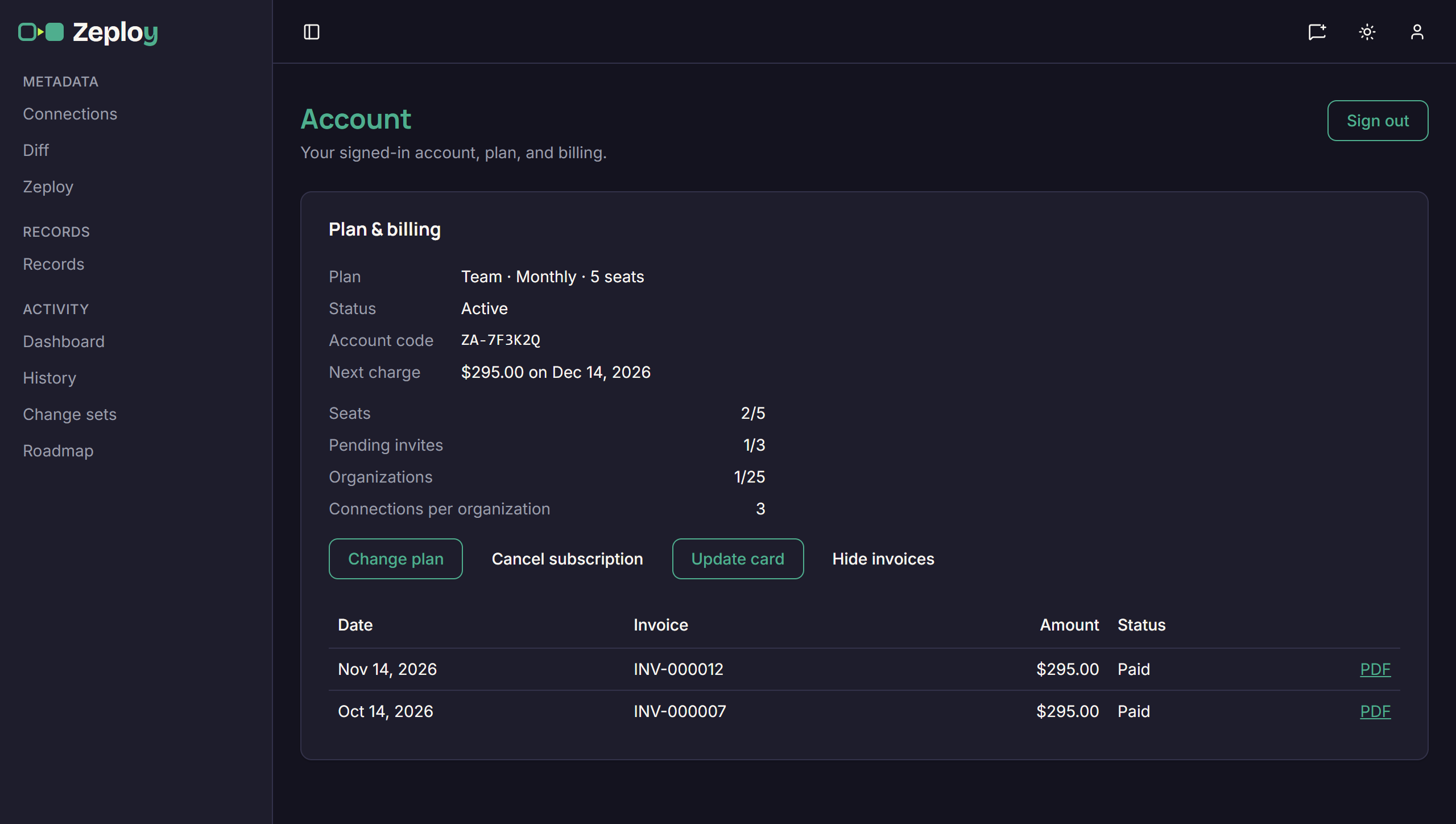
- Read the plan summary. You see:
- Plan: the tier, billing period and seats, for example "Team · Monthly · 5 seats", plus any added organizations.
- Status: Trial, Active, "Cancels on" a date, Past due or Payment failed.
- Account code: for example ZA-7F3K2Q. This is the same code printed as "Reference #" on your invoices. Quote it when you contact support.
- Trial (days left) and First charge, or Next charge, with the amount and date.
- Scheduled, if a plan change is waiting for the end of the term.
- Check your usage. Seats, Pending invites, Organizations and Connections per organization show how much of your plan you've used. A full meter turns red, with an "Upgrade your plan" link for owners.
- Change plan (owner). Click Change plan. In the dialog pick Solo ($29/mo) or Team ($59/seat/mo), Monthly or Annual · 2 months free, the number of seats (Team only) and extra organizations (+$10/mo each).
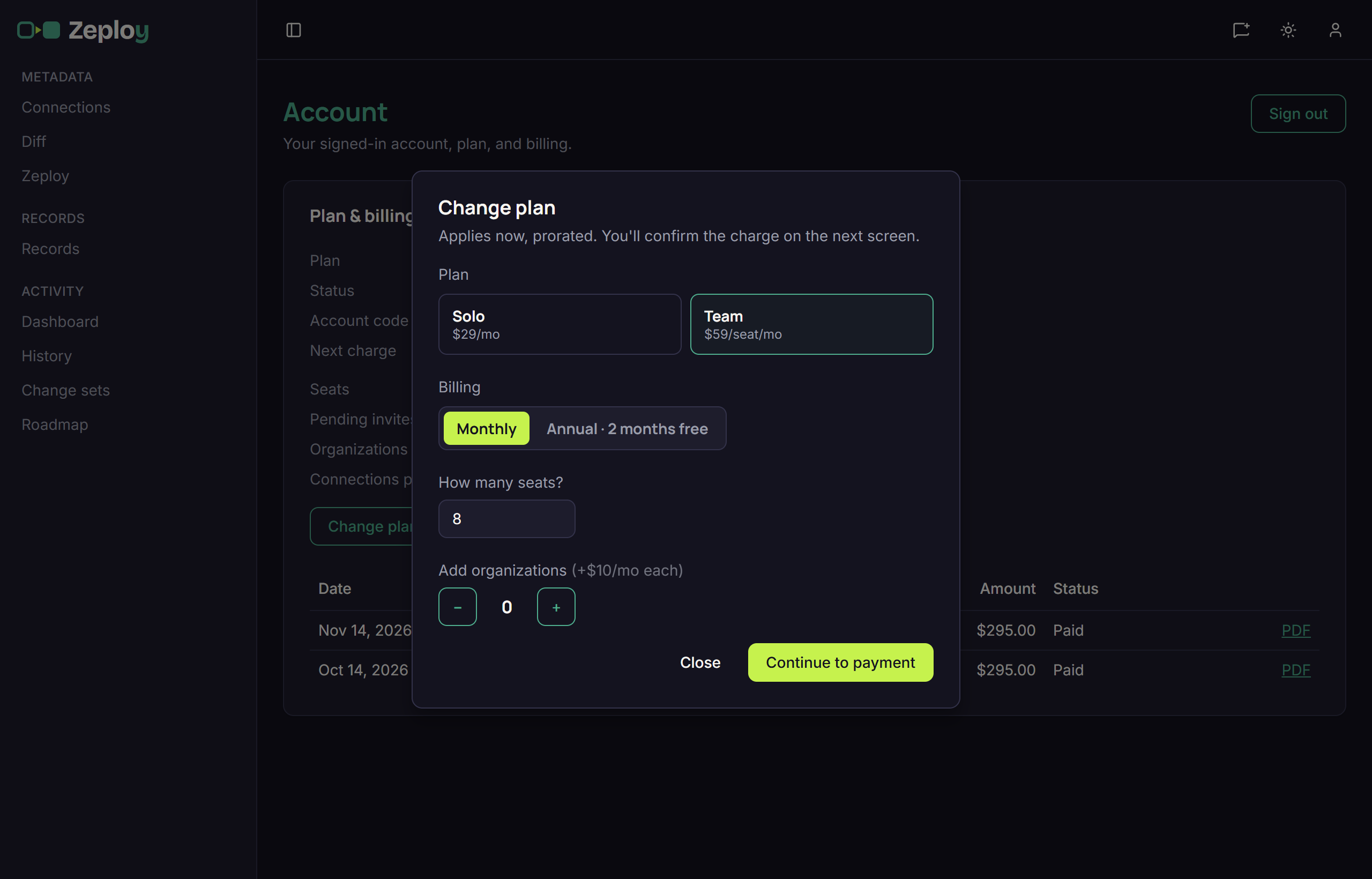
The text under the title tells you what will happen. In a trial the change applies now. An upgrade applies now, prorated, and the button reads Continue to payment, which takes you to Zoho's payment page. A downgrade is scheduled for the end of the term with no refund for the current term, and the button reads Confirm change. Mixing increases and reductions in one change isn't allowed, so make them separately. If your usage is above the new plan, you see a message and can't confirm. 5. Cancel a scheduled change. If one is waiting, click Cancel change. 6. Update your card. Click Update card. It opens Zoho's secure page to enter the new card. 7. Get invoices. Click Invoices to list date, invoice number, amount and status. Click PDF on a row to download it. Click Hide invoices to collapse the list. 8. Cancel. Click Cancel subscription. In a trial you aren't charged and access continues to the end of the trial. Otherwise access continues to the end of the paid term and you aren't charged again. Confirm with Cancel subscription, or back out with Keep subscription. Until the date passes you can click Undo cancel.
Good to know
- Card details never enter Zeploy. Updates and payments happen on Zoho's hosted pages.
- After a payment or plan change, the card can take a minute to update. You may see "Done in Zoho — it may take a minute to show here."
- If a payment fails, a banner appears for the owner and admins with Manage payment: "Your last invoice payment failed. Pay by" a date "to keep your account active." Click Pay now. If it isn't paid in time the account is locked until the balance is paid. See Close your account.
- During a trial a banner reads "Trial — N days left", with a "Manage plan" link to this card. Only the owner sees the charge amount.
- Comp accounts show "Comp / lifetime account" and have no billing.