Start your trial
Zeploy starts with a 7-day free trial. You pick a plan, create your login, and enter a card at checkout. You are not charged if you cancel before the trial ends.
Before you start
- Have a card ready. The trial needs one.
- If a teammate already invited you to their Zeploy account, use the link in your invitation instead. See Team and permissions.
Steps
Open the signup page and choose a plan. Under Plan, pick Solo ($29/mo, one seat) or Team ($59/seat/mo). Team adds a How many seats? field.
Choose how you pay. Under Billing, pick Monthly or Annual · 2 months free. Annual shows the lower yearly rate ($24/mo for Solo, $49/seat for Team, billed yearly).
Add organizations if you need them (optional). Add organizations (+$10/mo each) has minus and plus buttons. Solo includes one organization. Team includes five per seat. An organization is one customer, with its sandbox and production Zoho orgs grouped together.
Enter your email and password. Or skip them and choose Continue with Google or Continue with Microsoft.
Tick both boxes. You must agree to the Terms of Service and Privacy Policy. You must also confirm that your card will be charged when the 7-day trial ends, and every month (or year) after that until you cancel. Every button that continues stays disabled until both are ticked.
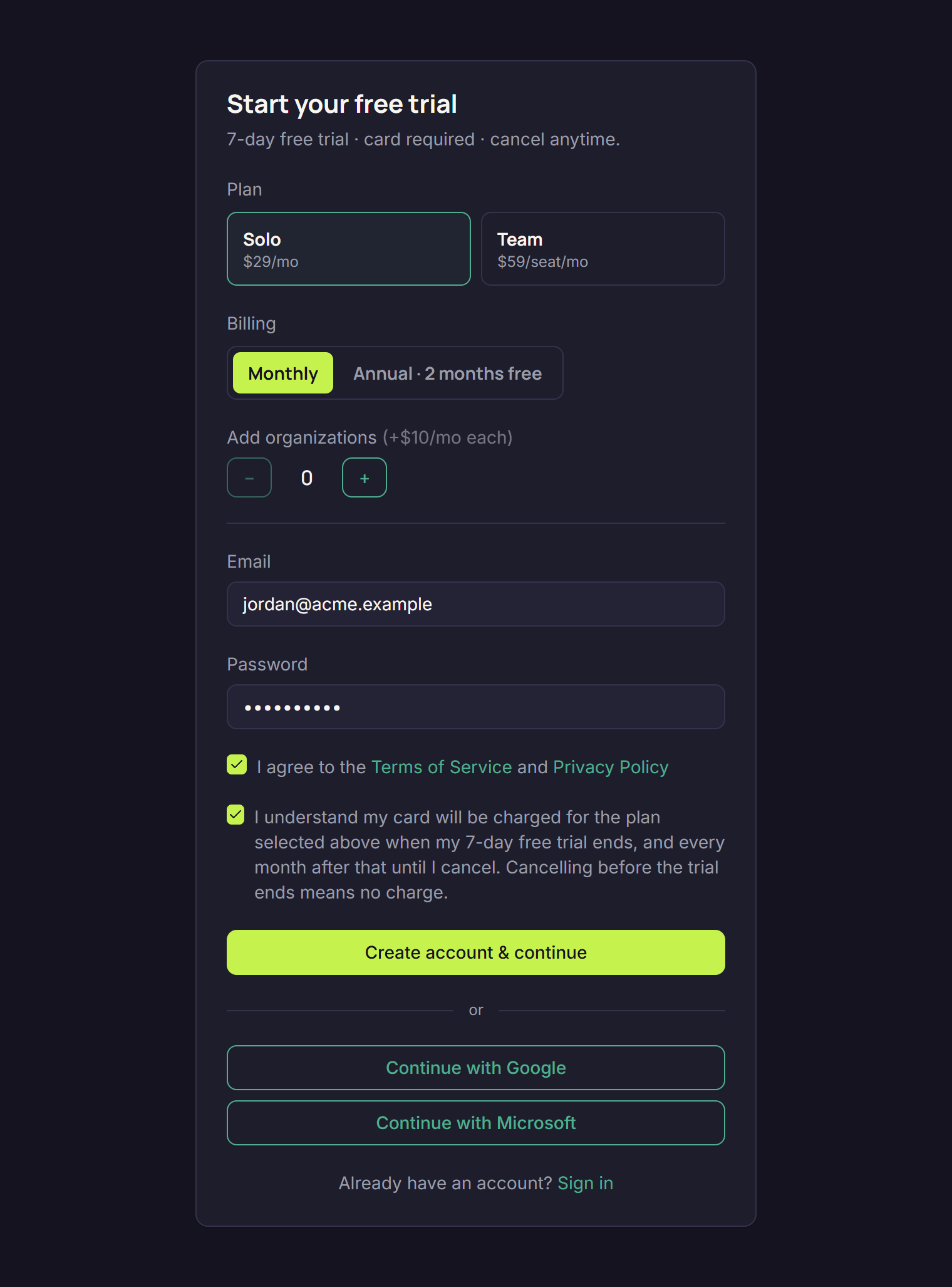
The signup form with a plan chosen and both boxes ticked Choose Create account & continue. Zeploy creates your login, then sends you to our billing provider's hosted checkout page. Enter your card there.
Wait for Zeploy to confirm. After checkout you land on a "Setting up your account…" screen while Zeploy confirms the subscription. This usually takes a few seconds. Zeploy keeps checking for about 20 seconds before it gives up.
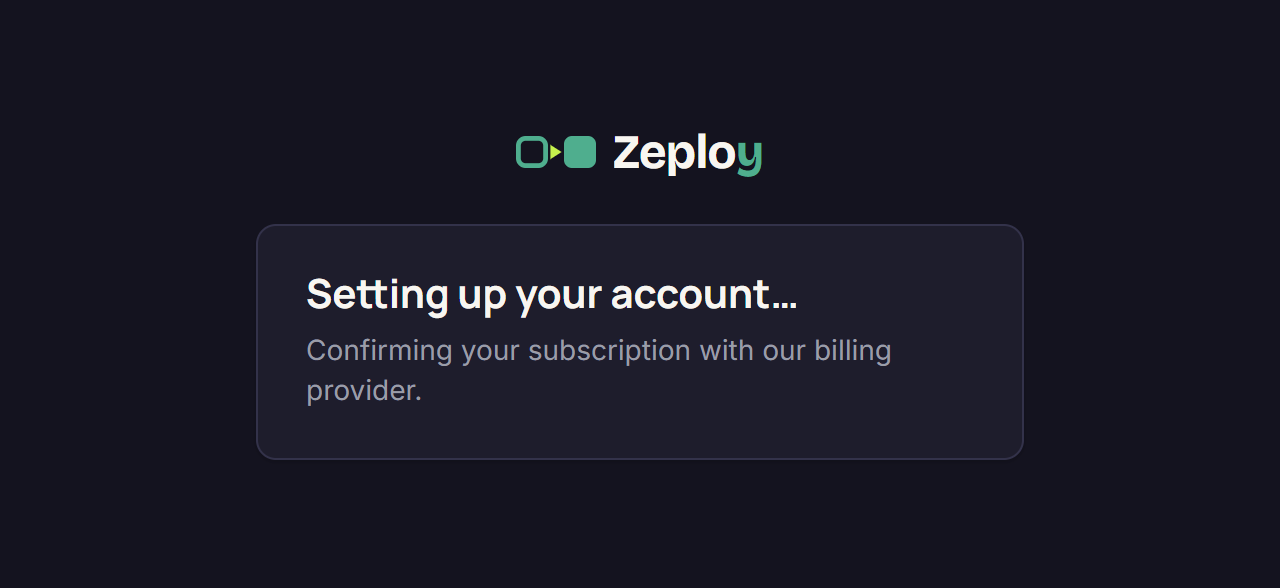
The Setting up your account screen shown after checkout Land on your dashboard. You see a "Welcome to Zeploy! Your free trial runs until" message with your trial end date. A banner at the top of the app counts down the days left.
Next, connect your first org.
Good to know
- If you see "Still setting up", choose Retry in a moment. You won't be charged twice.
- If your email already has a login from an earlier, unfinished signup, enter the same password and Zeploy resumes your checkout. A different password shows an error.
- A login that already belongs to a Zeploy account can't start a second trial.
- If something goes wrong confirming a payment, the screen tells you to contact support@zeployapp.com. See Feedback and support.
- You can change plan, update your card or cancel later. See Plan and billing.