Change sets
A change set is a saved list of metadata changes. Save one when you will Zeploy the same set of changes more than once, or when you want to prepare a selection now and run it later.
Steps
Save a change set from the diff. Run a diff, tick the added or changed items you want, and click Save as change set in the bottom bar. Enter a name when asked. Items that have errors, and the parts of a blueprint, can't be saved. Zeploy shows no confirmation, so check the Change sets page to see it.
Open Change sets from the sidebar, under Activity. Each saved set is a row with its name and description.
Look inside a set. Click items on a row to open or close its list. Each item shows its type, its component and its action, which is create or update.
Choose where it goes. At the top of the page, pick a Source snapshot and a Target. Snapshots appear as short ids, and only completed snapshots are listed. Targets show name and environment.
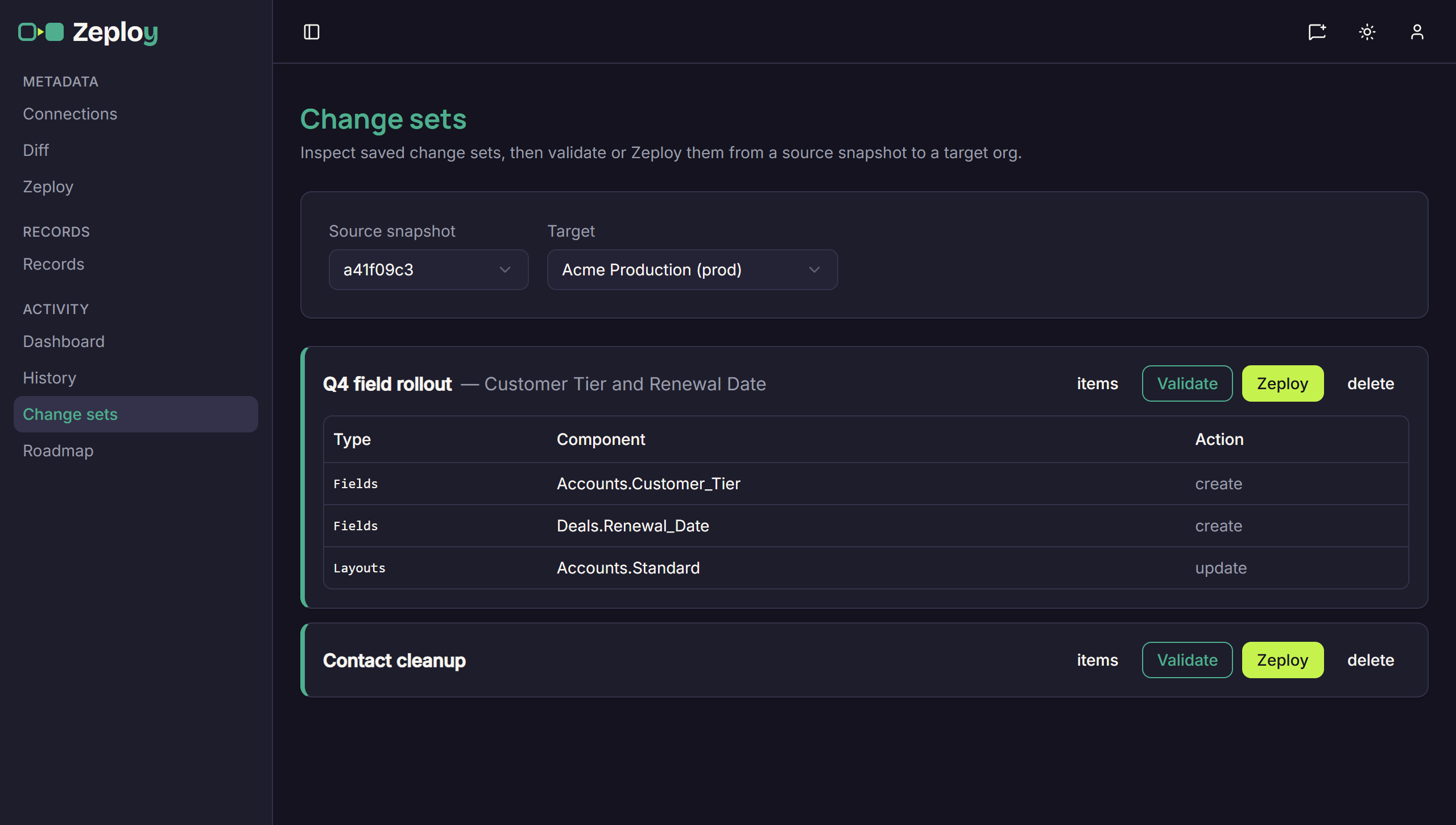
The Change sets page with one set expanded Validate first. Click Validate on the set. Zeploy checks it against the target without changing anything and opens the deployment page with the result. See Validate.
Zeploy it. Click Zeploy to run the set against the target. If you can't write to orgs, the button reads Send for Zeployment instead. Click it, add an optional note and send it for approval. See Request approval.
Delete a set you no longer need. Click delete on its row. The set goes straight away, with no confirmation.
Good to know
- A change set holds the list of changes, not the values. When you run it, Zeploy reads the values from the source snapshot you choose. A newer snapshot gives you the newer values.
- Validate and Zeploy both need a source snapshot and a target. If you click without choosing them, the page says "pick a source snapshot and target".
- Anyone can save, look at and validate a change set. Only people allowed to write to orgs can Zeploy one. See Team and permissions.
- Change sets are for metadata only. Records use their own selection. See Compare records.