Connect your first org
Zeploy works on the Zoho CRM orgs you connect. You group them under an organization, which is a friendly name for one customer, such as "Acme Corp". Connect a sandbox and a production org under the same organization and you can compare and deploy between them.
Before you start
- You need a Zoho login that can sign in to the CRM org you want to connect.
- Your plan limits how many organizations you can create, and each organization holds up to three connections. See Plan and billing.
Steps
Open Connections from the sidebar. Under Metadata, choose Connections.
Name the organization. In the Organizations card, type a name in New organization, such as "Acme Corp", and pick your Data center (US, EU, IN, AU or JP). Use the data center your Zoho account lives in.
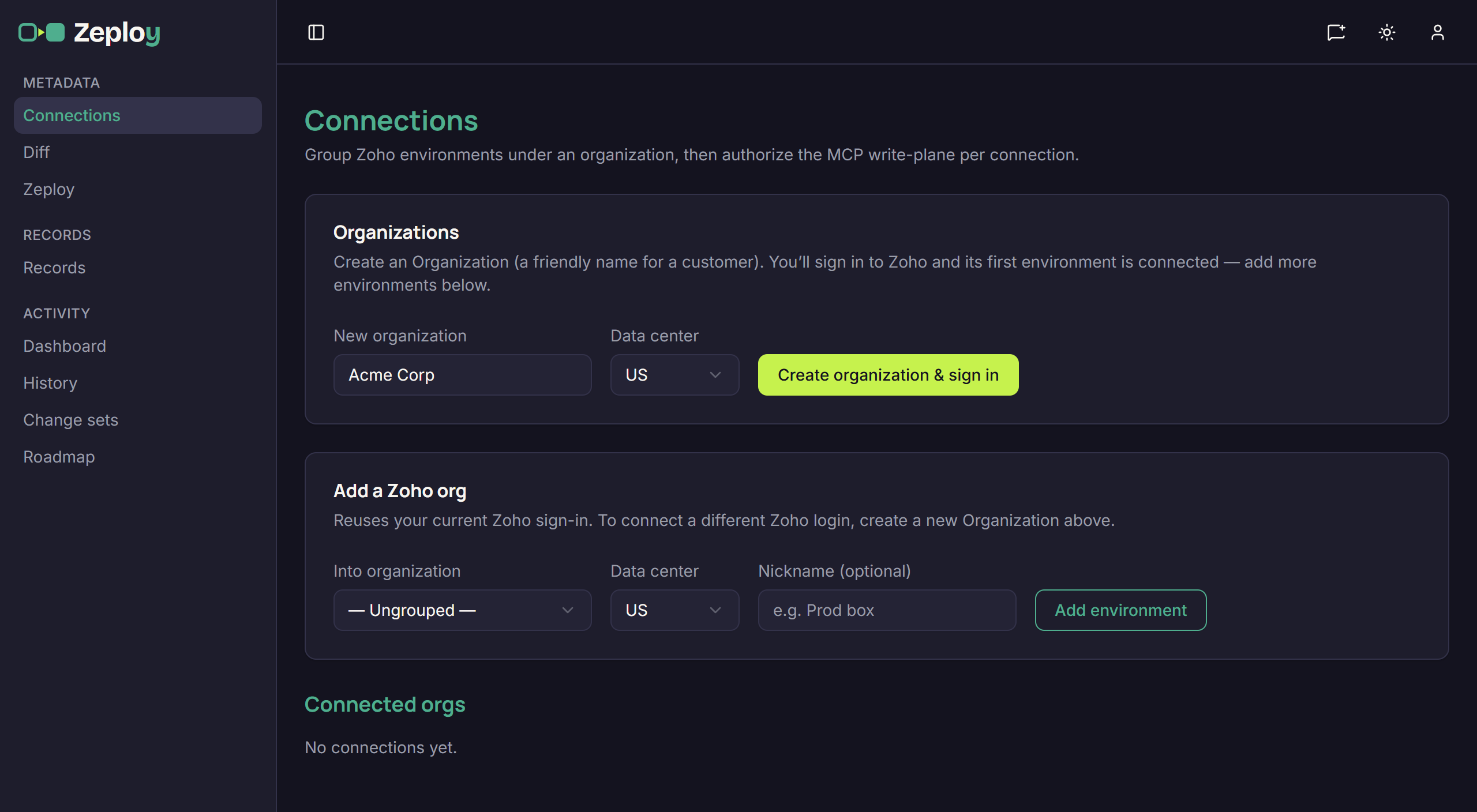
The Connections page with Acme Corp typed into New organization Choose Create organization & sign in. Zeploy sends you to Zoho. Sign in with the login for this customer and approve access. Zoho sends you back to Connections.
Check the new connection. Under Connected orgs, the organization appears with its first connection. A PRODUCTION or SANDBOX badge shows which kind of Zoho org it is. Zeploy detects this from Zoho.
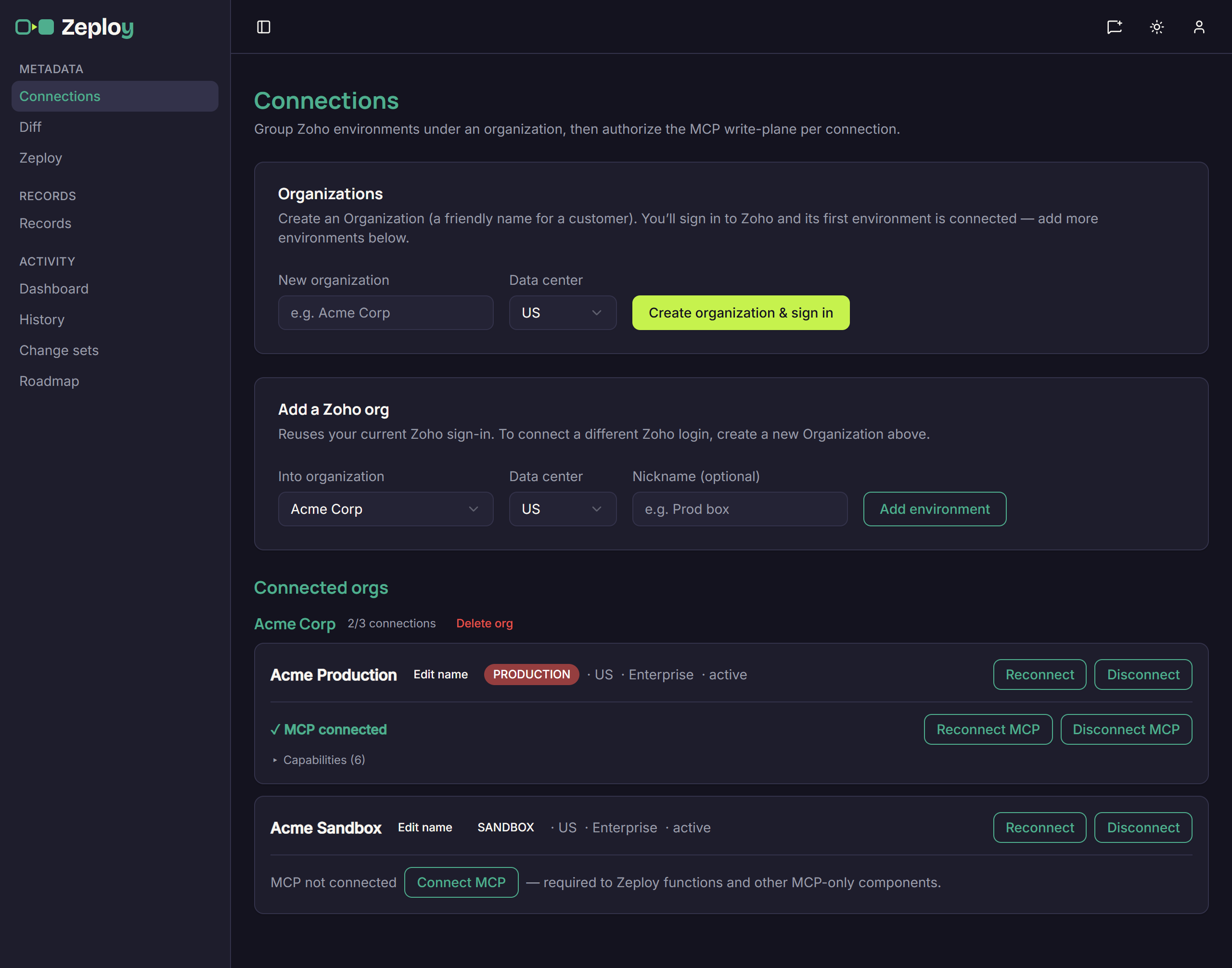
Connections list showing Acme Production and Acme Sandbox under Acme Corp Add the second org. In Add a Zoho org, pick Into organization (Acme Corp), the Data center, and optionally a Nickname. Choose Add environment. This reuses your current Zoho sign-in, and Zoho asks you to approve access for the org. To connect a different Zoho login, create a new organization instead.
Connect MCP if a connection asks for it. Some components (such as functions) need an extra authorization. If a connection shows "MCP not connected", choose Connect MCP and approve it in Zoho.
When you have two connections in one organization, you are ready for your first Zeployment.
Good to know
- Zeploy only compares and deploys between connections in the same organization. It never pairs two customers' orgs. A connection with no organization (shown as "Ungrouped") can't be used for a diff until it is in one.
- A sandbox and its production org often report the same name. Give each a nickname so you can tell them apart in pickers. See Connections.
- If Create organization & sign in or Add environment is greyed out, a message below it explains which plan limit you reached.